Frequently Asked Questions
Bluetooth/USB Controller
Setup Instructions – Mac
Bluetooth Instructions
- Do not plug in the USB cable if you are trying to connect to the controller via Bluetooth.
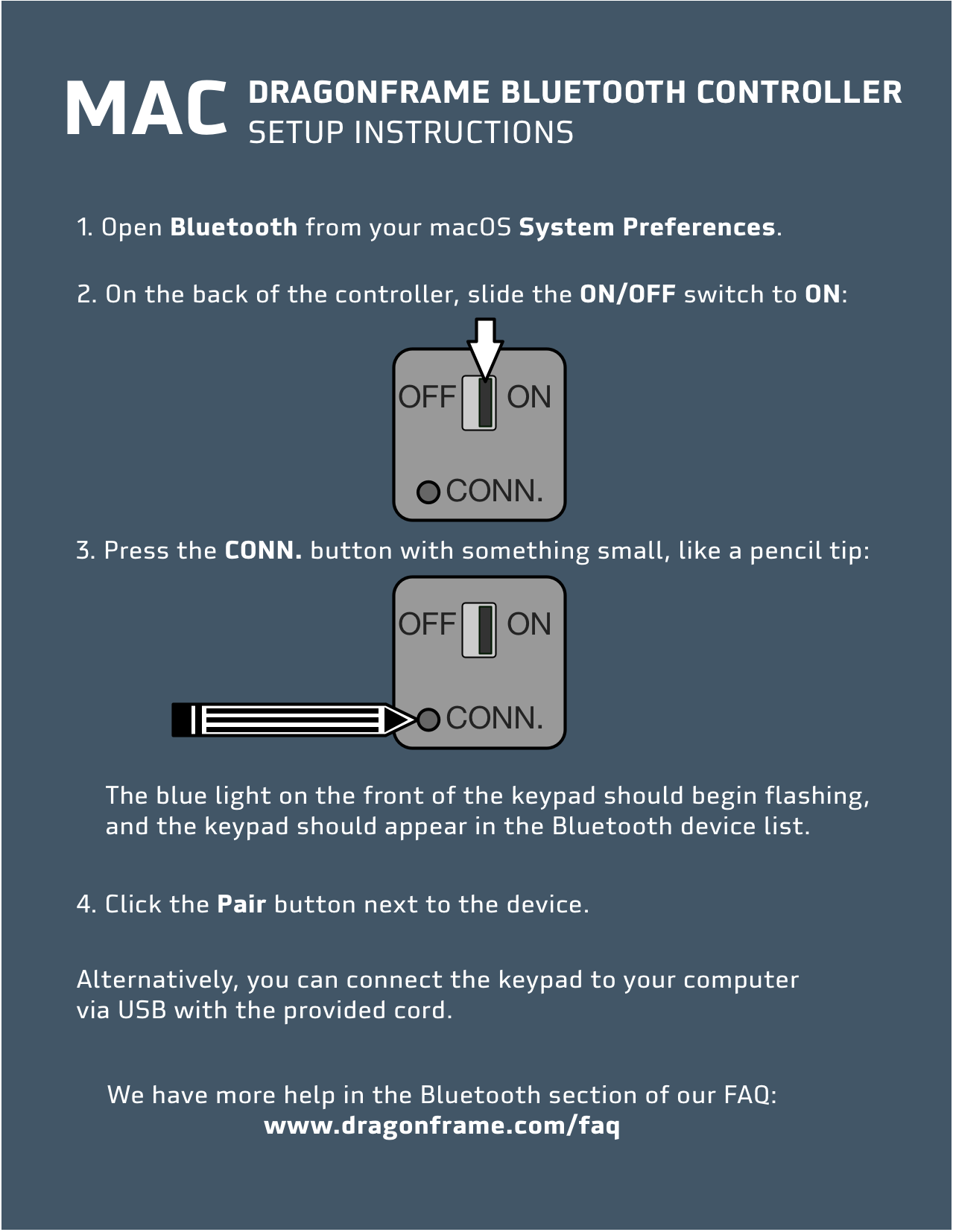
- Open System Preferences and go to Bluetooth.
- If it says “Bluetooth: Off”, press Turn Bluetooth On.
- Turn your Dragonframe Bluetooth Controller over:
- Flip the power switch to ON.
- Press the CONN. button. You will need to use a pencil tip, paper clip, or something similar to press it.
- (The blue light on the front of the keypad should be flashing.)
- The keypad should appear in the Bluetooth Devices list.
- Select the keypad in the Devices list and press the Pair button.
- Your keypad should be paired and ready to use.
USB Instructions
- Plug in the USB cable we provided to the controller, and the other end into the computer.
- (Batteries are not required for the USB mode.)
Setup Instructions – Windows
Bluetooth Instructions
- Do not plug in the USB cable if you are trying to connect to the controller via Bluetooth.
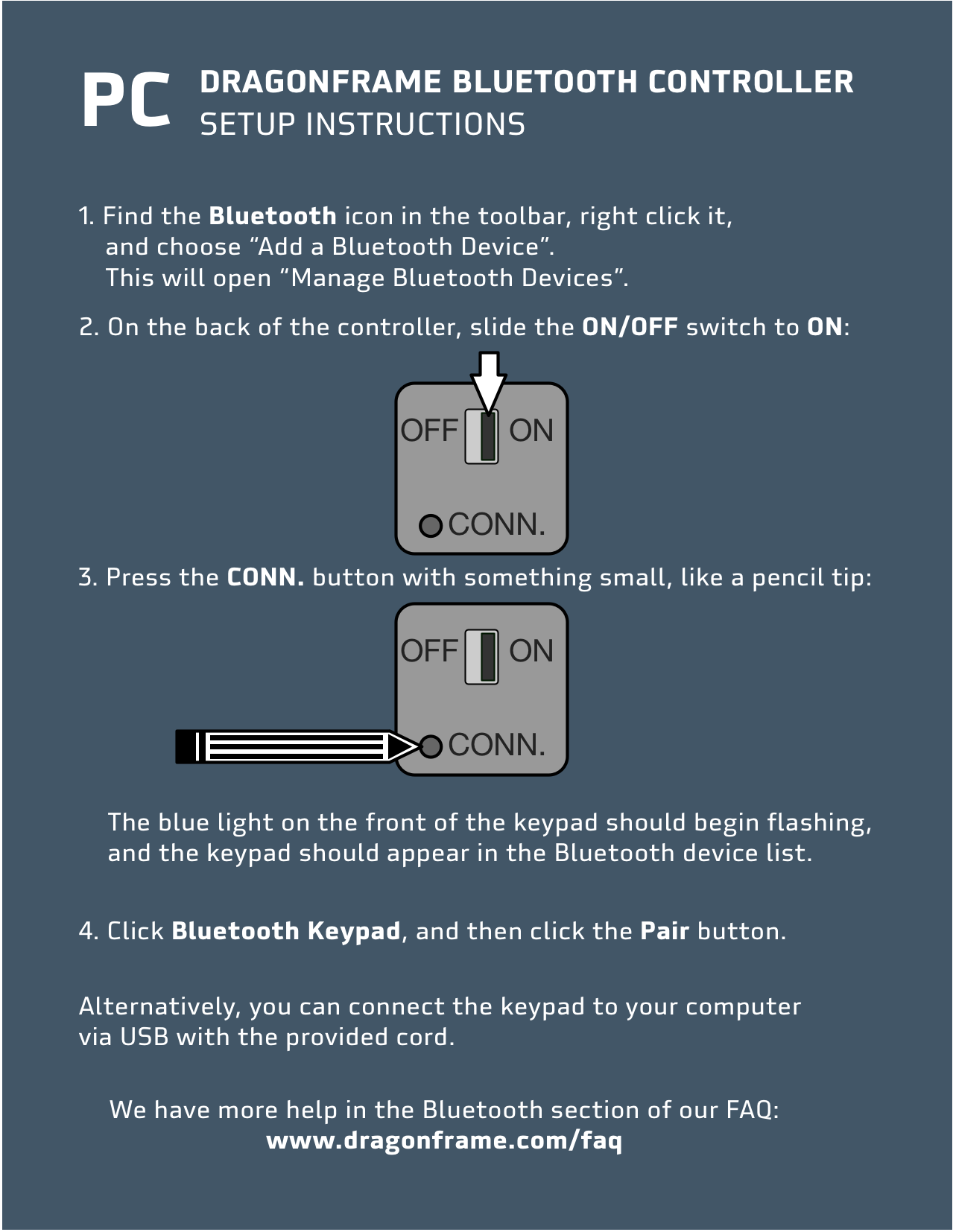
- Find the Bluetooth icon in the toolbar, right-click it, and choose Add a Bluetooth Device. This will open Manage Bluetooth Devices.
- Turn your Dragonframe Bluetooth Controller over:
- Flip the power switch to ON.
- Press the CONN. button. You will need to use a pencil tip, paper clip, or something similar to press it.
- (The blue light on the front of the keypad should be flashing.)
- The keypad should appear as “Bluetooth Keypad” in the Manage Bluetooth Devices list.
- Select the keypad and press the Pair button.
- Your keypad should be paired and ready to use.
USB Instructions
- Plug in the USB cable we provided to the controller, and the other end into the computer.
- (Batteries are not required for the USB mode.)
Setup Instructions – Mac
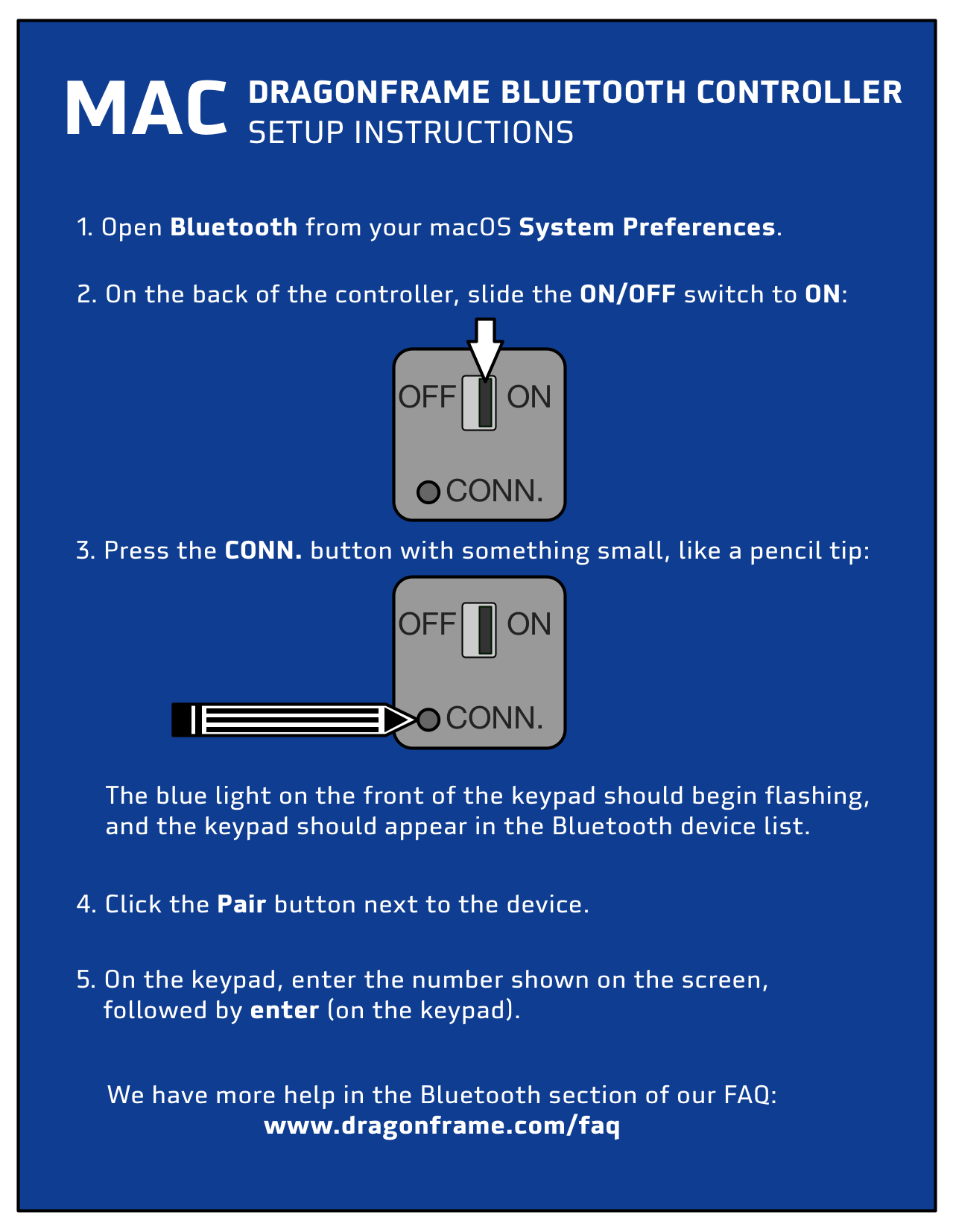
- Open System Preferences and go to Bluetooth.
- If it says “Bluetooth: Off”, press Turn Bluetooth On.
- Turn your Dragonframe Bluetooth Controller over:
- Flip the power switch to ON.
- Press the CONN. button. You will need to use a pencil tip, paper clip, or something similar to press it.
- (The blue light on the front of the keypad should be flashing.)
- The keypad should appear in the Bluetooth Devices list.
- Select the keypad in the Devices list and press the Pair button.
- Enter the number shown on screen using the bluetooth keypad and hit enter.
- Your keypad should be paired and ready to use.
Setup Instructions – Windows
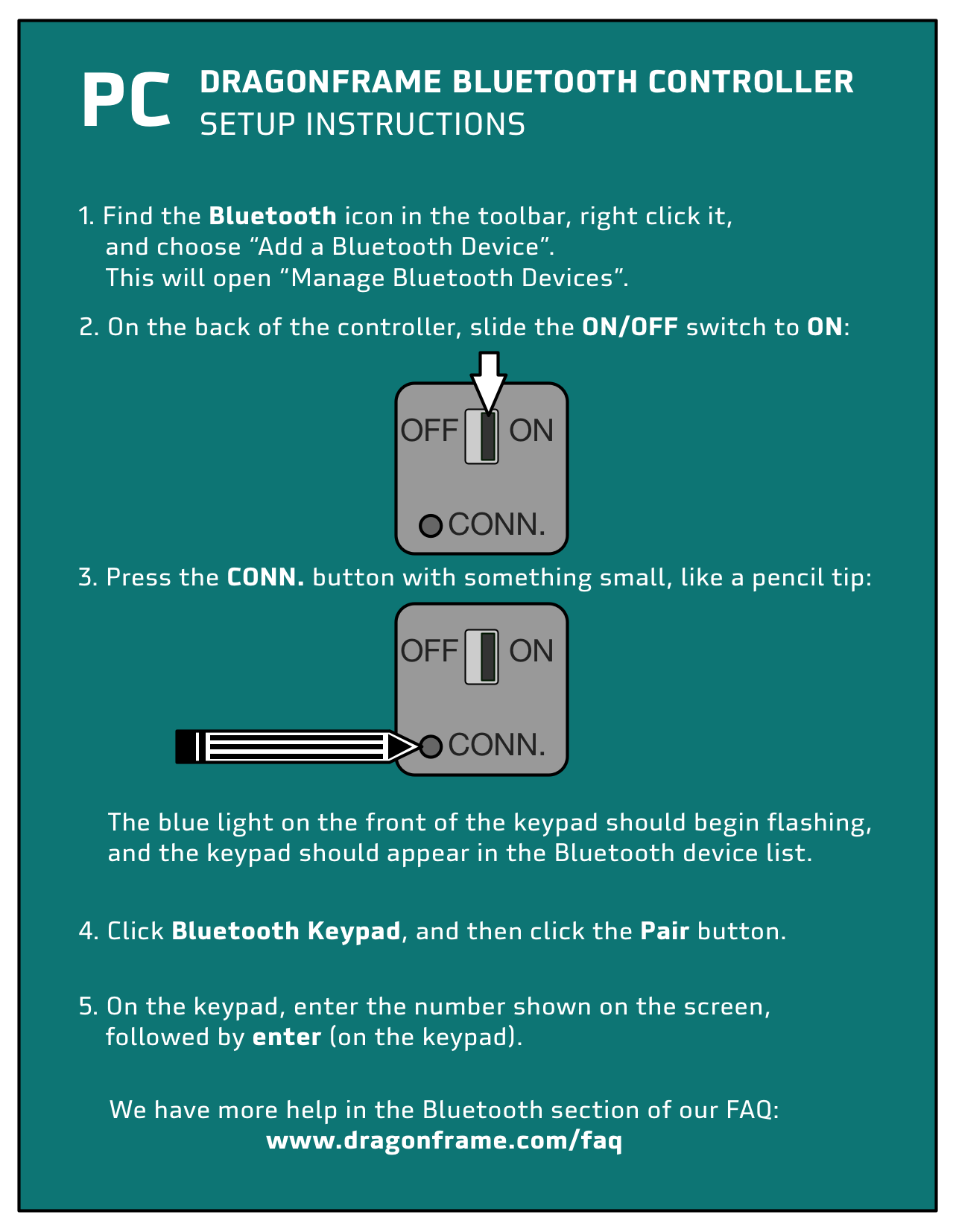
- Find the Bluetooth icon in the toolbar, right-click it, and choose Add a Bluetooth Device. This will open Manage Bluetooth Devices.
- Turn your Dragonframe Bluetooth Controller over:
- Flip the power switch to ON.
- Press the CONN. button. You will need to use a pencil tip, paper clip, or something similar to press it.
- (The blue light on the front of the keypad should be flashing.)
- The keypad should appear as “Bluetooth Keypad” in the Manage Bluetooth Devices list.
- Select the keypad and press the Pair button.
- Enter the number shown on screen using the bluetooth keypad and hit enter.
- Your keypad should be paired and ready to use.
If the blue light doesn’t flash, it means you didn’t actually depress the CONN. button after turning the keypad on. You must use something small, like the tip of a pen or pencil, or a bent paper-clip, to press it.
Instead of giving you a code to type on the keypad, the computer asks you for the keypad’s PIN. If that happens, try this:
- When it asks you for a code, click into the field, and type “0000” on the regular computer keyboard, then click the Connect button.
- Immediately after that, type “0000”, followed by enter, on your Dragonframe Bluetooth keypad.
- Wait 15-30 seconds.
Note: The computer will not provide visual feedback of the keypresses.
Windows 10 added a feature to use a numeric keypad to control your mouse.
If this is on, the keypad won’t work properly.
To fix the issue:
- Open the ‘Ease of Access’ settings by pressing the Windows logo key + U on the keyboard.
- On the ‘Ease of Access’ settings screen, scroll down and select ‘Mouse’ in the left-hand column.
- On the right side of screen, click the On/Off toggle switch under ‘Control your mouse with a keypad’ to turn it off.
This issue applies to either the USB or Bluetooth keypad.
Camera / Lens
Please review all of the information in the Camera FAQ here, and visit the Camera Support page to find setup instructions for each camera Dragonframe supports.
If you are still having trouble, send in a Problem Report through the program’s Help menu.
We recommend Canon EOS cameras, specifically the ones listed on our supported cameras page.
The Canon EOS cameras have a large live view with exposure simulation.
They also have smooth mechanics during capture.
Get the Canon EOS R or 5D Mark IV if you have a larger budget. If you want a full-frame camera at a lower price, look at the Canon EOS 6D.
The Nikon Z series also works really well with Dragonframe.
If you have a limited budget, you can look for used Digital Rebels (or 450D/1000D) on Amazon.
Dragonframe supports a wide array of cameras. Please visit our Camera Support page for a full list.
Camera Support
Canon offers a Stop Motion Animation Firmware addon for EOS R, EOS RP, R8, R100, and EOS R6 Mark II cameras. You must purchase a camera with the special firmware, or send your camera in to get it updated. It is a paid offering. (The models that are available may vary by region.)
Here is an overview of the features it provides, and the support in each version of Dragonframe:
| Feature | Dragonframe 4 | Dragonframe 5 |
|---|---|---|
| Supported Cameras | R/RP | R/RP/R8/R100/R6 Mark II |
| HD Live View (1920 x 1280) | YES | YES |
| Focus Peaking | YES | YES |
| Aperture Lock | --- | YES |
| Focus Programming | --- | YES |
HD Live View: The live view (video assist) is doubled from 960×640 to 1920×1280.
Focus Peaking: The camera shows which parts of the image are in focus with bright colored pixels. You must use an RF lens and set it to ‘MF’.
Aperture Lock: The camera keeps the lens closed during video assist and while capturing photos. This prevents potential flicker from the aperture opening and closing repeatedly. Requires an RF lens and Dragonframe 5. The feature is always on in Dragonframe 5. You can verify by choosing a fairly closed aperture, like f/22, and looking into the lens. Verify that it is closed during live view. Then verify that when you take a picture it does not open and close.
Focus Programming: This also requires an RF lens and Dragonframe 5. Dragonframe can program the focus if you create an axis in ARC and set the Connection to ‘Digital Focus’. This feature does not work on a shot that also zooms. Changing the zoom affects the focus range. Prime lenses are best for this feature. Or set the lens to the desired zoom for the shot, and turn the camera off and on.
Inquire at Canon:
Canon USA: https://www.usa.canon.com/explore/stop-motion-animation-firmware
Canon UK: https://www.canon.co.uk/pro/services/upgrades/stop-motion-camera-firmware/
Dragonframe supports many full-frame mirrorless cameras, including the Canon EOS R series, the Sony Alpha A7/A9 series, and Nikon Z series.
Additionally, the Olympus, Fujifilm and Panasonic cameras we support are all mirrorless (but not full-frame).
See our camera support page for the most up-to-date list of supported models.
Note that some of the earlier Sony models do not send the live view over USB.
Dragonframe supports several medium format cameras:
- Fujifilm GFX 50S
- Fujifilm GFX 50R
- Fujifilm GFX100
- Pentax 645Z
You can find these listed on our camera support page.
Camera Support
The software does not support Hasselblad or Phase One medium format cameras.
Dragonframe supports Olympus OM-D E-M1, E-M1 II, and E-M5 II, as well as Panasonic DC-GH5, DC-GH5S and DC-G9. Those all work really well with the software.
See our camera support page for the most up-to-date list of supported models.
Dragonframe supports direct R3D capture from RED DSMC2 cameras. You need to use the Gig-E connector, which may require a specific back-plate and cable accessory.
Note: DSMC3 cameras are not currently supported. They do not provide a way to directly capture R3D files.
See the instructions on our camera support page.
RED changed the protocol for communicating with their cameras, between the DSMC2 and DSMC3 models.
The DSMC3 protocol does not provide a way to retrieve captured frames from the camera.
This makes it unusable for Dragonframe.
Unplug it right now! The HDMI port on your computer is an output only—for sending the screen to a monitor or HDTV.
Any of the supported still cameras should be connected via USB.
First of all, we recommend using a still camera for the highest quality. And when we support a camera, generally that means it provides live view over USB, not HDMI. See our Camera Support page for a list of supported cameras and instructions to configure them to work with Dragonframe. [Camera Support]
In some cases, though, it may be useful or necessary to use the HDMI output of a camera, either as just the video assist source, or also as the capture source.
In those cases, you will need to use an HDMI capture device to get the HDMI signal converted to a usable video source. You cannot plug into the computer’s HDMI port, because that is an output for a monitor.
The following devices should work. However, please make sure you pick a device that is compatible with your computer, your operating system, and your camera’s HDMI output:
- Any of the Blackmagic Design devices listed on our Camera Support page. [Link]
- Elgato Cam Link 4K
- Atomos Connect 4K
Most digital still cameras have USB ports, and can be used with a computer to download images from the camera. However, that is the extent of the common functionality.
Most cameras do not have any type of tethered shooting capabilities, where the computer can change settings and trigger the camera to capture an image. And cameras that have tethered capabilities (such as Canon and Nikon supported models) have very different interfaces.
We try to support as many cameras as we can reasonably do.
We found that the GoPro WiFi interface was basically unusable for Dragonframe. The connection was slow and often failed.
The quality of the grabs was fairly awful, and some of the auto-exposure and auto-focus features could not be disabled, so the camera was unusable.
If you need to use a small camera, look at the Ximea cameras we support.
Dragonframe supports most Canon EOS cameras. However, most of the Canon EOS M cameras are not supported because Canon does not provide tethered shooting support for them. You may notice that Canon’s own EOS Utility does not support tethered shooting with the ‘M’ series cameras.
The latest EOS M camera, the M50, is supported in Dragonframe 4.1 and newer.
Dragonframe supports most Nikon DSLR cameras. However, the D3000 and D3100 cameras are not supported because Nikon does not provide tethered shooting support for them.
First, make sure you have followed all of our setup instructions for your camera.
If you installed Sony Imaging Edge on Windows, it may have installed special “libusbK” drivers for your camera. If it does this, other programs, such as Dragonframe, will not detect your camera.
- Go to the Windows device manager and check if camera is listed under “libusbK USB Devices”.
- If so, double-click it and choose Uninstall Device.
- Check Delete the software driver for this device.
- Turn camera off and back on.
- Windows should install the normal driver for the camera.
- Run Dragonframe and check the connection now.
Note that Dragonframe 5 and newer support Android devices running our free Dragonframe Tether application, and connecting over WiFi.
This answer is for Dragonframe 4: Apple provides a fairly easy way to communicate between a desktop application and a device, over the tethered USB connection. That is how we are able to support iPhones. Android requires the user to install developer tools (and know how to use them) in order to support something similar. This is not something we want our customers to deal with.
No. You must use Dragonframe 4 or newer, along with our free Dragonframe Tether app on the phone, in order to use it as a capture device.
Dragonframe Tether
No. You must use Dragonframe 5 or newer, along with our free Dragonframe Tether on the phone, in order to use it as a capture device.
In Dragonframe 4, we only supported iOS devices, because our tether application only supported USB tethering. That was not something we could do easily on Android devices.
Well, it’s kind of technical… Basically Apple decided to use some of the same PTP event codes as Olympus, and so Apple does not pass the events on to the end application. They fixed it in macOS Sierra, but chose to leave it unresolved in El Capitan.
This is where a basic photography class could be helpful. There are all sorts of considerations for lenses, angles of view etc. Here is a simple rule to help you out: if you are shooting miniatures—imagine there is a tiny crew of people shooting your film.
Where would they put their little camera? If you are shooting an interior—put the center of the lens about where it could fit in that room.
Then pick the focal length that shows what you need for the shot.
This is just a starting point. Get books on cinematography. Watch great films. We hope this helps!
Note that we strongly recommend using a manual aperture lens (such as a Nikon lens) with a Canon body. With a digital lens, the aperture will close down to slightly different positions for each shot. This is not a problem for still photography, but for stop motion or time-lapse it creates “flicker”. For Canon cameras, use a Nikon manual aperture lens (‘D’ series) with a Nikon to Canon lens adapter.
Stop Motion Animation Firmware: If you have an EOS R-series camera with Canon’s special stop motion animation firmware, we recommend getting a Canon RF lens. You do not need to use a manual aperture lens in this case.
Canon Stop Motion Animation Firmware – More Information
For Nikon cameras, use a Nikon manual aperture lens and put masking tape over the lens’ electrical contacts.
A manual aperture lens has a physical ring for controlling aperture. Do not get a ‘G’ series lens, which has no aperture ring.
Your camera is supported and set up properly, but the software is not detecting it. Or the software sees the camera but then stops working after a while. There are a variety of connectivity issues that people experience, but the causes are usually the same. So we will start with likely causes first:
- The USB cable is too long.
- The USB cable is defective.
- The USB port on the computer/hub or camera is damaged.
- The power supply to the camera is interrupted.
As you can see, many of the problems have to do with USB connectivity. Therefore, when you have camera issues, we recommend that you switch back to a simple setup and test the camera and software:
- Use a short USB cable (preferably the one that came with the camera).
- Plug the USB cable directly into the computer (not through a hub).
- Power the camera over AC.
If this setup works, slowly change your configuration to identify the problem.
First, make sure your camera is supported by visiting the Camera Support page, taking care to note which versions of Dragonframe support the camera (if any). Follow any setup instructions provided. Then you will want to verify that the computer itself can see the camera. If you are on a Mac, use “Image Capture”, which is an application that comes with the computer and is located in the “Applications” folder. On Windows, you can see if the camera connects when you plug it in, since Windows always pops up a message for new devices. If you have a Canon camera, you can also use “Canon EOS Utility” on either platform to detect the camera. If you have Nikon Camera Control Pro 2, you can check that as well.
If the operating system or other programs can see your camera, but Dragonframe does not, you should definitely send in a camera test (see Dragonframe Help menu) and also contact support. If nothing can see your camera, try using a different USB cable and port, and possibly try your camera with another computer.
Anti-virus software blocking camera detection.
If you have anti-virus software, make sure to white-list Dragonframe so that it can access the camera.
If your camera is supported, and you followed all of our setup instructions, and Dragonframe can’t seem to talk to it… it may be a permission issue. There was probably a point, when you first ran Dragonframe on macOS Catalina, that it asked if Dragonframe could access Photos… and you said ‘no’.
Quit Dragonframe and turn off your camera.
Open a Terminal (in Applications : Utilities) and run one of the following commands:
For Dragonframe 4: tccutil reset All com.dzed.dragonframe4
For Dragonframe 5: tccutil reset All com.dzed.dragonframe5
For Dragonframe 5 Dev: tccutil reset All com.dzed.dragonframe5beta
The run Dragonframe, and answer ‘Yes’ to the permissions questions.
If that doesn’t work, please try the development build.
This issue always seems to be related to the USB connectivity issues we describe above. For some reason, the cameras tend to freeze when there is poor USB connectivity. You can actually see the same problem in Canon EOS Utility as in Dragonframe. We have notified Canon and are also exploring alternate solutions.
The solution for you is to use shorter USB cables or buy a better USB extension cable.
Usually this is just a matter of camera settings and/or lighting. Start by going into the Cinematography workspace and adjusting the camera settings. The most important are the three sliders for Shutter Speed, Aperture and ISO. (If you are using a manual lens, the Aperture slider will be grayed out.)
- Make sure the lens cap is off.
;) - Increase the shutter speed (to at least 1″).
- Open the aperture (go to a lower number). If you have a manual lens then open it up all the way.
- Increase the ISO.
- Increase the amount of light in the room.
If the live view remains black, send in a Camera Test through the Help menu.
If you are using a digital lens (not a manual aperture lens), then the live view and high-resolution images will have different aperture values, and therefore different depth-of-field and focus range. This is because the camera keeps the aperture wide open during live view, giving a shallow depth-of-field and a small focus range. If your high-resolution image has a stopped down aperture, like f/22, it will have a large depth-of-field and large focus range. Possible solutions:
- Accept this difference and live with it.
- Switch to a manual aperture lens with a lens adapter.
- If you are using a Canon camera, you can set the live view to use depth of field preview. In Dragonframe 5+, this is in the Camera Settings section of the Cinematography workspace. In older versions press Command-K (Ctrl-K Windows) to open the video settings, and turn on depth of field preview there.
First of all, it is super important to understand that the live view and high-resolution images are different. In the cinematography workspace you set up your high-resolution capture settings and take test shots to make sure that your final images will look correct. In the animation workspace you are typically working with the video assist images from your camera, although you can switch to review your high-res images.
Possible Cause #1: Using a Nikon DSLR
Most of the Nikon cameras do not have live view “exposure simulation”. This means that their live view exposure level auto-adjusts all the time, and does not reflect changes in camera settings. In this case, you will have to live with the difference. Make sure to check your high-resolution images early and often.
Possible Cause #2: Exposure Simulation is turned off
The Canon live view DSLRs all have exposure simulation. It is either “always on”, or there is a setting to turn it on. If there is a setting, it will be called out in our setup instructions. Just make sure you’ve followed that step.
Possible Cause #3: Using a manual aperture lens on a Canon body
We recommend using a manual Nikon lens on Canon body, because this avoids flicker. The downside is that this can affect the live view exposure simulation of the Canon cameras. Usually you can adjust the live view to match the high-resolution images by adjusting the “Exposure Preview Offset” in the Cinematography workspace’s Camera Settings. You can read more about the problem and see another solution here.
Sometimes the internal live view calculation is thrown off by the last digital lens connected.
Here is a possible solution:
- Attach a Canon digital lens to the camera.
- Open the aperture as much as it can go (lowest f/stop number).
- Take a picture.
- Power down the camera and then try your Nikon lens.
If you still can’t get close with the exposure preview offset, let us know.
Possible Cause #4: The sensor isn’t getting enough light.
We often get calls from people who are on a dimly lit set, with their aperture stopped down to f/22, and with “Exposure Preview Offset” set all the way to “+4”, and they want to know why the live view doesn’t match their high-resolution image. This is especially problematic for manual aperture lenses, since the aperture is always stopped down.
The reason is simple: the lens doesn’t have enough light. You have exceeded the limits of the live view exposure simulator (inside the camera).
Here are some possible solutions:
- Increase the lighting on your set.
- Open up the aperture.
- Use a bash light (also called a work light). This is a light that is on for the animator and video assist, but off for the high-resolution capture.
There are a few ways to set up a bash light with Dragonframe:
- Use the DDMX-512 to control a bash light through DMX.
- Use the DDMX-512 to control a bash light through a relay.
- Go to Preferences : Capture and set a capture delay of several seconds. Turn a light off after you press the shoot button, and then back on after the high-resolution image is captured.
In the Animation workspace you typically are looking at the live view and stepping back to other video assist images you already captured. These should always line up perfectly. Now, you switch to view the high-resolution proxies in the animation workspace, because you want to see your “real” images. But when you step between live and the other frames, the image doesn’t line up perfectly.
There is no real solution to this problem. Dragonframe gets the live view and the high-resolution images directly from the camera. Unfortunately these are not framed exactly the same, and so they will just be off. But that’s why we have the live view, so you can animate with it.
If this is super important to you, there is something you can try. You may find that certain image sizes have framing that more closely matches the live view. You can adjust the image size in the Cinematography window’s Camera Settings, and compare to the live view. For example, the Large JPEG might use a slightly different section of the sensor than the Medium JPEG. You can experiment to see which matches the best.
If your live view has light bands that move across it, you are probably dealing with an issue between the refresh rate of your live view and the lighting source.
One potential source for this is your lights, especially if they are fluorescent. In that case, you may need different lights. This can also happen with very fast shutter speeds.
If you slow the shutter speed down to 1/2 second or slower, does the problem go away?
If your live view or hi-res video images have light bands that move across it, you are probably dealing with an issue between the refresh rate of your live view and the lighting source.
One potential source for this is your lights, especially if they are fluorescent. In that case, you may need different lights.
For most video sources, in the Camera Settings, you can select ‘Frame Averaging’ and choose a value like 60. This will average together many consecutive frames, and probably get rid of the banding effect.
If this happens, your camera thinks it is in movie mode. That’s why it’s limiting your shutter speed range. Make sure to follow our camera setup instructions.
Camera Support
For Nikon cameras you need to turn off Manual movie settings in the Movie Settings.
This is a common issue for Canon users trying to use an external flash. This is actually a limitation of the camera, described in the camera manual (most models):
Cautions for Live View shooting
A non-Canon flash will not fire during Live View shooting.
Dragonframe provides a workaround. In the Cinematography workspace set External flash to On. Dragonframe will disengage the live view prior to capturing the high-resolution image, allowing the external flash to fire.
Sometimes the camera and program are working great, and then all of a sudden, every capture fails.This usually is caused by a disk failure:
- Check if the hard drive is full. You can fill it up quickly shooting RAW files!
- Check if someone moved or renamed the folders out from under you.
- For an external or network drive, check if it was removed or disconnected.
- Check if the permissions for the folder/drive are not allowing you to write to it.
There are many factors the can contribute to flicker.
Here are things you can do to reduce flicker:
- Make sure your lighting is controlled. No natural light coming through windows.
- Make sure your power is consistent. Fluctuating power leads to fluctuating lights.
- Watch out for reflections. If you wear a bright shirt, it can reflect light onto the set.
- Use longer exposures. A one second exposure will be less likely to have flicker than a 1/100th exposure.
- Use the ‘capture blackout’ preference in Dragonframe to turn the screen black during hi-res capture.
- Use manual aperture lenses. The opening and closing of the aperture can lead to fluctuations in the exposure level. This is covered in another answer.
Sometimes a Canon camera will get locked up and need to be reset in a special way.
- Remove the USB plug from the camera.
- Open the battery door and release the battery or AC adapter.
- Put the battery or ac adapter back in.
- Plug in the USB.
- Try again in Dragonframe.
Dragonframe only has direct support for the first two BMD cameras: the original “Cinema Camera” and the “Production Camera 4K”.
Why? Because these camera have Thunderbolt output and provide a way for Dragonframe to directly retrieve high-resolution streams.
Newer cameras do not have the same direct control capabilities.
You can use newer Blackmagic Design cameras the same way you can use other HDMI sources: by using a Blackmagic Design capture device to take the HDMI output of the camera and bring it into the computer. This will only bring HDMI input into the computer. It does not capture RAW or DNG images.
In most situations, it is simpler and yields better results to use a supported still camera.
There is a known issue with macOS 14.2.0 that prevents our software from detecting digital still cameras.
Apple has resolved the issue in macOS 14.2.1. Please update if you are using 14.2.0.
Dragonframe can visually de-squeeze an image shot with an anamorphic lens.
In Dragonframe 5.2 and newer, the setting is part of the Camera setup in Scene|Cameras.
In Dragonframe 5.1, the setting is called ‘Anamorphic’, and is available with most cameras in the ‘Camera Settings’ area of the Cinematography workspace. There are various de-squeeze ratios you can choose from: 2.0, 1.6, 1.33.
In older versions, the setting is called ‘Stretch’, and only offers ‘Anamorphic’, which is 2.0.
No.
The live view the Dragonframe receives from digital still cameras is almost always 8-bit JPEG images in sRGB. There is simply not enough information, and not in the correct format, to apply a LUT to. In any case, it probably wouldn’t match if you applied the same LUT to the captured still image.
This is just how things are in still photography. It’s not really a limitation of Dragonframe.
If you have a command line tool that can process the RAW file and then add the look you want, it’s possible to recreate the JPG proxies that are viewed in Dragonframe. This would only be for the high-res still images, though, and not for the animator’s live view.
In general, though, it is simply not necessary for an animator to have the ‘final look’ as they animate.
Just make sure that images are properly exposed and in focus. You can adjust your final look at a later stage, when you process your RAW files for post-production.
DMX / Lighting
If you want to program lighting from within Dragonframe, you must have a compatible Dragonframe device:
- DDMX-512
- DDMX-S2 (old version)
- DMC-32
- DMC-16 (discontinued)
- DMC+ (discontinued)
- ENTTEC DMX USB Pro (and compatible products)
- ENTTEC DMX USB PRO Mk2
- Art-Net DMX Devices
One of these hardware devices is required to get a DMX512 signal from Dragonframe out to your lighting hardware.
Note that for real-time DMX capabilities, you need our DMC-32 real-time controller.
Dragonframe 4+
Dragonframe 3 / Dragonframe Stop Motion 2
If you are looking for a decent, inexpensive dimmer pack, check out the 4-channel models from Elation, such as American DJ DP-415.
We do not recommend Optima dimmer packs. They have random flickering.Note that standard dimmer packs, such as these, are for incandescent lights. Do not try to use them for other lights, especially not lights that have their own transformers.
You should not use a microphone cable for DMX, even though they have the same XLR connectors.They are not built to the same specifications.
Here is an explanation.
We have no idea. You almost certainly do not want to use a standard dimmer pack that uses current modulation (PWM).
Usually LED lights, if they can be dimmable, have their own system to do it. Some LED panels have DMX input directly on them, so you would just plug the DMX cable into it.
The best thing to do is talk to the manufacturer or read the documentation.
If Dragonframe gave you that message, it means that the DMX-capable device you connected to Dragonframe does not support all the channels you have in your scene’s program. For example, if your scene has 200 channels, but you connect a DDMX-S2 (which only supports 99 channels), you will get this message.
For the DDMX-S2, you can order an upgrade chip from our site to get 512 channels in Dragonframe 4 or newer.
You can only use one DMX controller (DDMX-512, DDMX-S2, DMC-32, DMC-16 or DMC+, for example) to control lights. You cannot add multiple controllers to access more lights.
Please note that this has nothing to do with how many dimmer boxes you use. You usually need to use multiple dimmer boxes.
You want to have a grow light on for the time between shots, then have it turn off and other lights turn on prior to capturing the image.
You can accomplish this with the bash light program.
The bash light is normally used as a way to provide extra light for the animator while setting up a shot. So it is on while using the live view, but then turns off before taking the hi-res capture. You can read about the bash program in the User Guide.
Set up a bash light program that has the grow lights enabled.
If you need an extended delay between turning off the bash light and capturing the image, you can adjust the “Bash light settle time.” You can find this setting in the DMX settings window (gear near the top left of DMX).
So, the grow light is enabled, either as a DMX channel, or as a trigger/relay output, on the bash program.
When the program goes to shoot, it captures the live view, then switches from the Bash to the main program. It waits for “Bash light settle time”, then takes the picture.
Free Trial
The goal of the free trial is for you to test it with your camera, and to familiarize yourself with how the software works.
We have a list of supported cameras, along with setup instructions and troubleshooting for camera issues.
The free trial is available here: https://www.dragonframe.com/downloads/
You will enter your email address, and our system will send you a special trial serial number (license key), along with further instructions.
If you don’t have your free trial code after 10-15 minutes, it probably got sent to your Spam/Junk or Promotions folder.
Hotmail accounts almost always send our messages to Spam.
Google/Gmail accounts usually send them to Promotions.
The message comes from from: Dragonframe Support ([email protected]) with subject Dragonframe Free Trial Information.
The free trial is for you to test the software with your camera and get used to how it works.
It has the following limitations:
- You can shoot up to 50 frames per take.
- Images will have a subtle watermark that cannot be removed.
- Camera RAW formats are not supported.
Otherwise the software is fully functional.
The free trial places a watermark (semi-transparent Dragonframe logo) over all of the images you shoot. You cannot remove this watermark.
The free trial places a watermark (semi-transparent Dragonframe logo) over all of the images you shoot. The watermark cannot be removed from images you shot with the trial.
When you buy the software, any new images you capture will not be watermarked. But you cannot un-watermark images you shot during the trial period.
The free trial is only for you to test your camera and get used to how the software works. Because the free trial places a watermark on your captured images that cannot be removed, it is not suitable for starting a production.
Once you decide that the software meets your needs, you should purchase the software before starting on a project.
General
You can send in the program’s log files using “Report an Issue…” (formerly “Problem Report”) in the program’s Help menu. Sometimes, though, you may need to locate the log files manually. For example, if the program was crashing on startup.
Mac OS X
Please open a Terminal (in Applications : Utilities).
Type this command:
open ~/Library/Logs
The Logs folder will open in the Finder.
Look for Dragonframe.txt in the folder.
If the program crashed, you may also find a file that starts with “Dragonframe_” in the DiagnosticReports folder (within the Logs folder).
Windows
Open a File Explorer (not Internet Explorer!) and type this in the address bar:
%TMP%\DZED\Dragonframe
Look for Dragonframe.txt in the folder.
If the program crashed, you may also find a file that starts with “crash” in the same folder as the logs.
Linux
Please open a Console.
Type this command:
cd /tmp/DZED/Dragonframe

ls -la
Look for Dragonframe.txt in the folder.
If the program crashed, you may also find a file that starts with “crash” in the same folder as the logs.
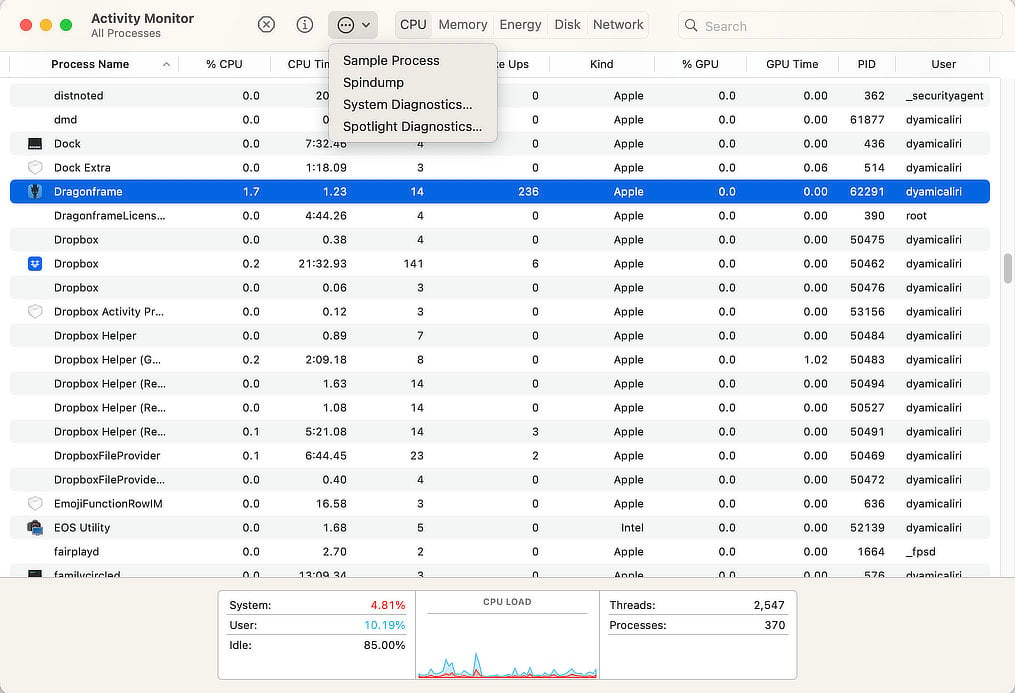
If Dragonframe freezes, we may ask you to send us a process sample, so we can see where it is hanging.
This only works for macOS.
Open the Activity Monitor. You can find this in Applications : Utilities.
Find Dragonframe in the process list and click on it.
Go to the (…) menu at the top, click it, and choose Sample Process.
Save the file to your computer, then email it to us as an attachment.
You chose ‘Compare with’ to compare an existing image to the live view in the animation workspace.
To return to normal, do one of the following:
- Press the play button (zero/play on the keypad, or SPACE on the keyboard).
- Press the LIVE key (#3 by default).
- Step forward or backward (arrows or #1 or #2 keys).
If you can see live view in the Animation workspace, but don’t see any images in the Cinematography workspace, then you probably have an outdated graphics card driver.We have seen this with ATI graphics cards with older drivers. Nothing shows up in the Cinematography workspace. If you update to the latest drivers, the problem will go away.
For more information on updating your driver, go here:
Dragonframe 3.5 and newer accepts most standard audio formats including WAV, AIFF, MP3 and others.
For earlier versions, the supported audio file formats are:
- WAV or AIFF
- 8 or 16 bit per channel
- 1 or 2 channels (mono or stereo)
If you are on the Mac, you can get a free program called “Audacity”. Open your file with it, and then save it as a WAV file. It will be compatible with Dragon Stop Motion and Dragonframe.
You can also use iTunes to convert the file.
Open the file in iTunes, then follow the instructions here:
http://support.apple.com/kb/ht1550
Basically, you go to the iTunes Preferences, select “Import Settings…”, and choose Import Using “WAV Encoder”.
Then select your audio track in iTunes, go to the Advanced menu and select “Create Wav version”.
You should be able to import that version into Dragon Stop Motion or Dragonframe.
This suggests you have Windows 10 N, which does not include the Media Feature Pack.
Follow the instructions here to install it:
<a href=”https://support.microsoft.com/en-us/help/4475817/media-feature-pack-for-windows-10-n-may-2019″>https://support.microsoft.com/en-us/help/4475817/media-feature-pack-for-windows-10-n-may-2019</a>
With Dragonframe 3.6 and newer, you may get the following message on Windows: “Could not start Windows Image Acquisition (WIA) Service or one of its dependencies.”
If that happens, please go to your Service Manager and make sure that none of these services are Disabled:
- Windows Image Acquisition (WIA)
- Remote Procedure Call (RPC)
- Shell Hardware Detection
Windows Only: Dragonframe 3.5+ uses OpenGL v2.1 to provide high-performance graphics processing.
If the driver for your graphics card does not support OpenGL 2.1, Dragonframe will give you a message like this:
- “The driver for your graphics card is too old and must be updated.”
- “Dragonframe requires OpenGL 2.1. Your graphics/driver card is using OpenGL 1.4.”
Additionally, if you have an Intel HD graphics card on Windows XP/7, you may get a message like this:
- “The driver for your graphics card is too old and must be updated.
(You are running Intel 2.1.0 – Build 8.15.10.2413.)”
If this is the case, there is a good chance you can resolve the problem by updating the driver for your graphics card. (Intel HD on Windows XP/7 requires driver 8.15.10.2450 or newer).
Generally, the Device Manager’s option to check for driver updates will NOT work. It always says your graphics card driver is up to date.
One option is to check your computer manufacturer’s website for drivers specific to your model.
Alternatively, you may need to visit the graphics card maker to get the latest driver:
For Intel Integrated Graphics cards, please find your latest driver here:
http://www.intel.com/p/en_US/support/detect/graphics
For nVidia graphics cards, you can find the drivers here:
http://www.nvidia.com/Download/index.aspx?lang=en-us
For ATI/AMD graphics cards, the drivers are here:
http://support.amd.com/en-us/download
Also, if you have a laptop with both an integrated and discrete graphics cards, see if you have the option of always using the discrete card with Dragonframe. In general they perform much better than the Intel integrated cards.
We’ve had a handful of reports where OS X shows this error dialog when the user tries to open Dragonframe: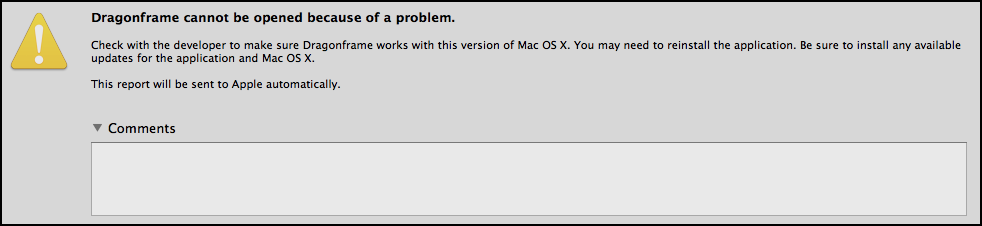
If you look at the report, it says something like this:
Dyld Error Message:
Library not loaded:
@executable_path/../Frameworks/libavcodec.dylibReferenced from: /Applications/Dragonframe/Dragonframe.app/Contents/MacOS/Dragonframe
Reason: Incompatible library version: Dragonframe requires version 55.0.0 or later, but libavcodec.dylib provides version 52.0.0
The issue is caused by some other program setting a global library path, which is a very bad thing.
There may be more than one program that does this, but we’ve found that older versions of an application called “Tracker” does this. If you installed Tracker version 4.84 or older, you should uninstall it and then install version 4.85 or newer to resolve the issue.
If you’ve never installed tracker, look for “DYLD_LIBRARY_PATH” in your environment plist file:
Open a Terminal (Applications : Utilities) and type:
sudo open ~/.MacOSX/environment.plist
It will ask for your password. This is your machine password that you use to log in. It does not show it to you as you type.
In the editor that opens, remove anything that says “DYLD_LIBRARY_PATH”.
Note: This might require XCode. If you don’t have it, you may alternatively need to just remove this file, like this:
sudo rm ~/.MacOSX/environment.plist
If Dragonframe crashes after creating/opening a scene, most likely you have an outdated graphics card driver. For Intel Integrated Graphics cards, please find your latest driver here:
Also, if you have a laptop with both an integrated and discrete graphics cards, see if you have the option of always using the discrete card with Dragonframe. In general they perform much better than the Intel integrated cards.
If you are using a numeric keypad to control Dragonframe, make sure that Num Lock is On. Otherwise the key commands will be interpreted incorrectly.
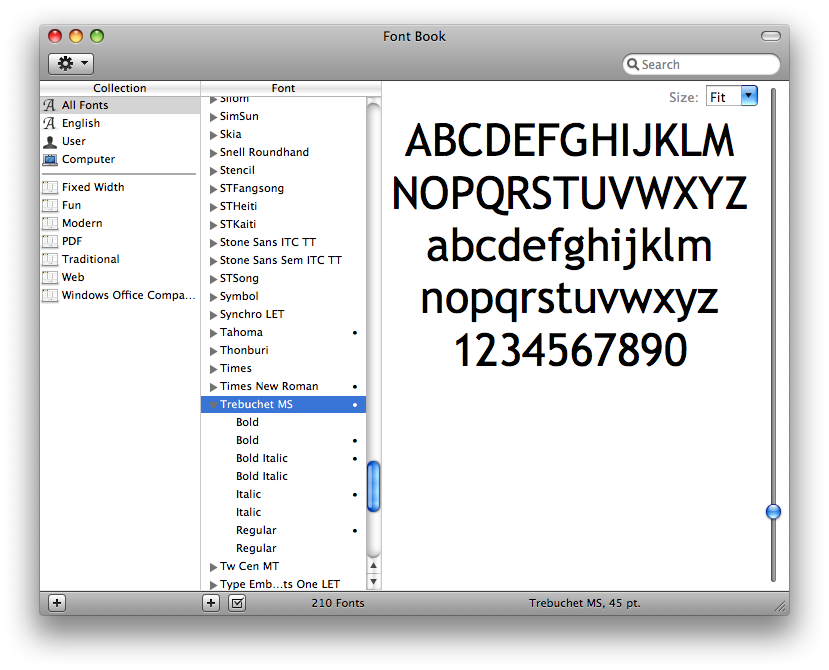
We have some reports of the program crashing when attempting to access font information on Mac OSX. To resolve the issue:
- Launch the Font Book application in the Applications folder.
- Select Trebuchet MS in the Font list.
- Select Edit -> Resolve Duplicates.
- Restart Dragon Stop Motion.
If Dragonframe’s window is entirely black when you start it, or if the program gives you warning about graphics card misconfiguration, this information is for you.
Many computers have two graphics cards. One that comes with the motherboard, usually an Intel integrated card. Then there may be a secondary, more advanced card, from NVidia or AMD.
Dragonframe needs to run using the more advanced card, and may have issues if you have set it to run on the integrated Intel card.
One way this can happen is if you plug the monitor directly into the HDMI/VGA/DVI port on the motherboard, instead of going into the separate graphics card. When you have a graphics card from NVidia or AMD, it will provide its own ports to plug into. If you plug into the wrong one, applications cannot use the better card.
Another way this can happen is if you configure your system to make Dragonframe run on the Intel card. NVidia and AMD provide software that lets you choose which graphics card to run specific applications on. You may need to look in that software and make sure Dragonframe is set to run on the proper card.
- Is the computer’s volume up?
- Is Dragonframe’s volume up? (Each workspace has a separate volume level.)
- Is Dragonframe muted (There is a mute key on our keypad)
- Set your output format to stereo (2 channel), 48 kHz.
- Make sure you are using normal speakers or headphones.
- Do not use theater sound setup.
On Windows, we have seen some cases that lead to the program freezing or hanging when the user opens a scene or creates a new scene.
Usually the main application window will be white, and the program hangs.
Here are the different reasons this can happen.
Monitor Plugged Into Wrong Port
If your computer has a dedicated graphics card, make sure all monitors are plugged into it directly.
We have seen numerous problems when one monitor is plugged into the integrated card on the motherboard.
Spatial Sound Processing Software: Sonic Studio or Nahimic
If you have a gaming laptop, and Dragonframe freezes when using dual monitors, this is probably the cause.
These sound programs try to enhance sound by injecting themselves into OpenGL calls.
For Nahimic, disable the “Nahimic” service in the Windows Services Control Panel.
For Sonic Studio, uninstall the software.
Our tutorials are only in English.
However, if you watch them on our YouTube channel, you can turn on subtitles in any language that YouTube supports.
Over the years we have had multiple people work on the Dragonframe user interface translations. We are very thankful to the work they have provided, allowing Dragonframe to be more accessible to non-English speakers.
Here are the translators:
- Spanish: Can Can Club
- French: Pierre-Jean MOREAU
- Portuguese: Pedro Iuá
- German: Juergen Kling
- Japanese: Baku Hashimoto
- Chinese: Beijing Ou-Lei Technology Com., Ltd.
- Korean: Kyungwon Song
If you updated your graphics card driver to NVIDIA’s Game-Ready Driver version 511.79, and Dragonframe now has issues starting up, the driver is probably the issue.
In that case, try switching over to the Studio Driver, version 511.65.
If you can’t reach our website from a Windows machine, check if you have a hosts file entry for ‘dragonframe.com’.
Follow the instructions here to edit your hosts file:
https://docs.rackspace.com/support/how-to/modify-your-hosts-file/
If you see ‘dragonframe.com’ on a line, remove the whole line.
Then save the file and try our website again.
If you have the software installed, you can find the user guide through the program’s Help menu.
It is installed within the program installation folder, so you can also find it in the file system.
Installation / Activation
- You may activate the software on one computer for every license you purchase.
- You may also activate a single license on a second computer if Dragonframe will not be used on both at the same time.
So, if you have two computers and two sets, you need two licenses.
If you have a laptop and a desktop, and you want to use Dragonframe on one or the other at any given time, you only need one license.
These are the main feature changes between Dragonframe versions, in reverse order (newest to oldest).
For specific bug fixes and minor updates, see the release notes on the downloads page.
Downloads
Dragonframe 2024.01
- Improved hot key toggling of guide layers:
- In Preferences | Hot Keys, assign keys to “Guide Group #1 Toggle”, “Guide Group #2 Toggle”, etc.
- Right-click on layers to assign a group number. You can assign a group number to media layers, drawings, composition guides, and audio track reads.
- The group number appears next to the icon of each layer.
- Pressing the assigned hot key toggles all active layers that belong to that group number.
- New ‘dmc-lite’ Arduino real-time motion control sketch, for Giga R1 and Portenta H7.
In [Dragonframe Installation]/Resources/Arc Motion Control/dmc - Playback performance improvements.
- NDI Input: Direct NDI input integration. Add source through Scene|Cameras|IP Cameras screen.
- Option to lock NDI/Blackmagic/Syphon/Spout live view output to specific camera.
- DMX Generate Effect: Auto-generate flicker, pulsing, or static. Right-click on channel and choose “Generate Effect”.
- Arc: Added jogpad mode that uses jogpad keys but stays in main Arc workspace.
Dragonframe 5.2
- Added Leica SL / SL2 / SL2-s support.
- Added Sony ZV-E1 support.
- Axis groups: organize your motion control axes into groups. Add a group via the Arc hamburger menu, then drag channels into it.
- Frame Tags: Add colored tags to captured frames in the timeline or x-sheet. Right-click on the timeline (or control-click on macOS) and apply a tag from the contextual menu. (In the X-Sheet, add a ‘TAG’ column to see tags.) The tags move with the frames as you edit. You can use this to mark frames for some post-production reason, or as a way to quickly show/hide sets of frames.
- Improvements for blocking/rehearsal animation: step by tag and auto-tag first frame in multi-shoot.
- Option to add an exposure as a reference layer. This allows you to play back composited layers as you shoot a take.
- Audio track reading HUD in animation workspace can be popped out into separate window.
- Hardware acceleration for jpeg video assist images–on macOS Apple Silicon machines and Windows with Intel graphics.
- When a reference layer file cannot be found, the program now keeps the layer instead of removing it. It shows a missing symbol, and you can replace the media via a right-click (or control-click) on the layer.
- Bumped maximum camera count from four to eight.
- Added more zoom levels for animation workspace: 225%, 250%, etc.
- Improved anamorphic de-squeeze support. Anamorphic setting has moved to Scene|Cameras.
- Option to add exposure as a media layer.
- Individual drawing layer export/import.
- Major DMX UI performance improvements with many channels.
- Movie export ‘all exposures’ now works with multiple cameras.
- Alternate composition guides can be assigned a color, to more easily distinguish them.
Dragonframe 5.1
- Added Contour Shuttle integration
- Added support for Z-CAM cameras
- Added support for SIGMA fp and fp L cameras
- Ani: Added hardware acceleration on macOS and Windows for media layer playback
- Ani: Option to pin media players, so they stay up when switching exposures
- Ani: Hot key to toggle bash light in Animation workspace
- Ani: Hot keys to toggle grid layers
- Ani: Added “camera as media layer”
- Ani: Sharper hi-res proxies for playback
- Arc: Improved UI performance
- Arc: Move test / real-time playback for indexed positions
- Arc: Real-time looping and ping-pong playback
- Arc: Option to automatically start/stop movie recording with real-time playback
- Arc: Determine if move can be accomplished by virtual rig
- Arc: Reorient move to current position
- Arc: Output OSC both real and virtual motor positions
- DMX: Supports up to four DMX ‘universes’ of 512 channels each
- DMX: Improved UI performance with many channels
- DMX: Added gel chooser for ARRI fixtures with gel lists
- Audio: Restore track order when loading scene
- Audio: Export lip sync movie
- Added NDI video output, which can be used in Unreal Engine
- Added heif/heic image support
- Use x264 mp4 output for better results, and consistent support across all platforms
- X-Sheet: Option to pop out into separate window
- X-Sheet: Added multiple options to drawing tools
Dragonframe 5.0
General
- Support for Apple M1 Silicon (ARM64)
- Multiple camera support (up to four) – for additional hi-res capture or video assist
- Separate Drawing Layers and References for each magnification view or alternative video assist
- “Making-of” capture integrated into the animation process
- Support for fractional display scaling on Windows and Linux (125%, 150%, etc)
- Recover from conform failure
- Emojis in drawing layer text, notes
- Support Monogram Creative Console (Palette Gear) for various tasks
- Added a time estimate for long shoot multiple and move tests
- Added a composite movie export option
- Added a reverse export option
- Added a multiple-frame auto toggle
- Added keypad focus control in animation workspace
- Added ‘Past Takes’ reference layer to make it easier to refer to previous takes
- Drawing tool increment editor ticks can now show during animation or playback
- Reference movie player can go full screen
Camera Support
- Support for Android and iOS devices over WiFi via DF Tether 2.0
- Support for Intel RealSense depth cameras
- Improved RED support with capture over WiFi now possible
DMX
- Lighting Fixtures
- Graph mode to program with curves
- Program triggers (logic out and relay) via timeline
- Load test shots at full size
- Full DMX export/import
- Added search bar to more easily find lights
- Added ‘thread’ to visually tie badges to area in image
Motion Control
- Added “aim point” (with virtuals)
- Autodesk FBX import/export of camera (with virtuals)
- Safe move browser
- Programmable, repeatable focus with Canon FPM camera+lens combos
(FPM is ‘focus point memory’, and is part of a newer version of the stop motion firmware.
You must purchase a camera with this firmware, or get your camera upgraded, in order to use this feature.) - Programmable shutter speed
- Go motion can be enabled/disabled per exposure
- Record axis animation, for set or prop movers
- Couple two motor outputs (zDMC only)
- Output motor positions via OSC
- Move tests can be shot in reverse (for speedier turnaround)
Audio
- Added “replace audio file” option
Integrations
- Custom script actions can be assigned to hotkeys and called from Dragonframe
- OSC scripting can now have multiple calls for one action
Dragonframe 4.2
- Increased maximum allowed video assist size to 1920 wide. (Video assist resolution is usually limited by camera.)
- Support for Canon EOS stop motion firmware features
- New take/exposure/frame notes stored in metadata text file for passing on to post-production
- Reference images can now be popped out into separate window
- New alternate composition guide layers, for framing for multiple deliveries
- New movie record tool in Cinematography workspace makes it more clear which settings will be used when camera is set to record video
- New motion control adjustment layer to apply subtle adjustments to moves
- New motion control “time warp” feature to stretch or compress final move over time
- New DMX keyframe table view
- Support for simple arithmetic in many Arc and DMX fields
- Support for 4K webcams and Elgato Cam Link 4K
Dragonframe 4.1
- New “Notepad” for keeping track of scene notes.
- Up to eight “punch-in” positions of live view magnification.
- Focus check support for Sony A7III and A7RIII.
- Support for ARRI direct ARRIRAW capture.
- Support for RED DSMC2 direct R3D capture.
- Support for Pentax KP, K-1, K-1 Mark II, 645Z.
- Support for Canon EOS M50, T7/1500D/2000D and 3000D/ 4000D.
- Support for 3rd-party DMX hardware: ENTTEC DMX Pro and Art-Net protocol.
- New gamepad controller integration for programming motion control.
- New 3D mouse support for motion control.
- More virtualized axis configurations for motion control.
- Motion control capture in reverse.
Dragonframe 4.0
- New “Guide Layers” makes it easy to set up composition guides, reference layers and drawings.
- Multiple reference layers with separate opacity, chromakeying and masking.
- Integrated reference video player with animation time sync.
- Timeline pre-roll area for setting up lead-in clip.
- Multiple drawing layers with separate opacity.
- Improved live view magnification tools.
- New focus check tool within Animation workspace.
- New color palette (swatch) sampling and comparison.
- New color checking tools.
- High-resolution image comparison tools (A/B).
- Movie recording and playback for supported cameras.
- Import multiple audio clips.
- Custom DMX light profiles.
Dragonframe 3.7
- Numerous OpenGL improvements.
- Improved support for macOS 10.13 (High Sierra).
- Improved Blackmagic Design connectivity.
- Fixed histogram blue/green channels.
Dragonframe 3.6
- Many stability improvements
- Added Blackmagic Production Camera 4K (at 4K resolution)
- Added image sequence import
Dragonframe 3.5
Overview
Dragonframe 3.5 is a complete rewrite of the software in C++, replacing the Java version we have supported up until now. Overall it provides improved performance with better resource (RAM/CPU) usage.
Important Changes
- We have dropped support for OS X 10.4 (Tiger) and 10.5 (Leopard).
- We have dropped support for Canon PowerShot and Olympus cameras.
New Features and Improvements
- Faster loading of your project-frames are no longer loaded into RAM.
- No memory bar to constrain playback. You can play entire sequence of frames.
- Faster Live View rate (up to 30 FPS with Canon) with lower CPU usage.
- Improved Nikon and Canon connectivity.
- Major rework of frame hiding.
- Handles more audio file formats (wav, aac, aif, mp3).
- Retina (HI-DPI) assets on Mac.
- Mac Lion and Mountain Lion fullscreen support.
- Better line-up layer performance (no waiting for frames to load in).
- Simplified movie export options, with support for mp4 (H.264/ AAC) and Windows movie types (.avi).
- QuickTime not required on Windows.
- Webcam focus control (some Logitech models) with Arc programmability.
- Blackmagic capture device direct integration.
- Support for new camera models:
- Canon EOS 100D / EOS Digital Rebel SL1 / EOS Kiss X7
- Canon EOS 700D / EOS Digital Rebel T5i / EOS Kiss X7i
- Nikon D5200
- Nikon D7100
- Support for DMC-16 and real-time motion control.
- Motion control “move-shoot” mode and ability to send moco to different frames while animating.
Dragonframe 3.0
Tabbed Workspaces
Navigate through multiple Dragonframe workspaces within one window, or detach a workspace for dual monitor support.
Docked X-Sheet
Dock the highly configurable X-Sheet within the Animation workspace for easy viewing.
Vector-Based Drawing Tools
Draw lines, ticks, shapes and free form. Then select drawing objects to scale or rotate them. Use the increment editor to visualize movement along a path over time.
Lipsync
Import a face set library and create a perfect track reading in our revamped audio workspace.
Visual Timeline
View thumbnails and edit your sequence directly in the new timeline, which is part of the Animation workspace. You can quickly pull holds to adjust timing for pop-through tests.
DMX
Improved keyframe editing and visualization in Dragonframe 3. Create custom lighting programs per exposure.
Arc Motion Control
Set up multiples axes, jog motors, set keyframes and run move tests. Currently interfaces with the IOTA Controller and Arduino boards.
Video Assist Levels
Adjust video assist levels to compensate for low-light situations.
Dragonframe 5 supports both Intel and Apple Silicon natively. This means it runs natively on any of the Apple ‘M’ chips.
Dragonframe 4 is Intel only. However, it runs on the new Apple Silicon computers via Rosetta. It performs fairly well.
Dragonframe 5 works on macOS Ventura.
Dragonframe 4 will not be officially supported on macOS Ventura, although you may use it.
Here are the known issues for Dragonframe 4 with macOS Ventura:
- Printing the x-sheet to a PDF does not work. The ‘Save as PDF’ dialog opens and then disappears.
- Occasional hanging due to audio system changes.
- Occasional crashing due to camera/PTP system changes.
Dragonframe 4.3 and newer support macOS Catalina.
We have no plans to update Dragonframe 3 to support Catalina, due to continuous graphics driver changes from Apple.
Dragonframe 5.1+ and 2024+
System Requirements – Mac
macOS 10.14+ (Apple Silicon or Intel)
4GB+ RAM or more
A supported camera
System Requirements – Windows
Windows 10+ (64-Bit Only)
OpenGL 2.1 Capable Graphics Card
Intel/AMD CPU with 2+ Cores
4GB+ RAM
A supported camera
System Requirements – Linux
x86_64/amd64 Ubuntu 20+ or Fedora 28+
(Ubuntu recommended)
OpenGL 2.1 Capable Graphics Card
Intel/AMD CPU with 2+ Cores
4GB+ RAM
A supported camera
Dragonframe 5.0
System Requirements – Mac
macOS 10.13+ (Apple Silicon or Intel)
4GB+ RAM or more
A supported camera
System Requirements – Windows
Windows 7/8.1/10/11 (64-Bit Only)
OpenGL 2.1 Capable Graphics Card
Intel/AMD CPU with 2+ Cores
4GB+ RAM
A supported camera
System Requirements – Linux
x86_64/amd64 Ubuntu 18+ or Fedora 22+
(Ubuntu recommended)
OpenGL 2.1 Capable Graphics Card
Intel/AMD CPU with 2+ Cores
4GB+ RAM
A supported camera
Dragonframe 4
System Requirements – Mac
macOS 10.10-12.x
OpenGL 2.1 Capable Graphics Card
1.33 GHz CPU or faster
2 GB RAM or more
A supported camera
System Requirements – Windows
Windows 7/8.1/10
OpenGL 2.1 Capable Graphics Card
1.33 GHz CPU or faster
2 GB RAM or more
A supported camera
System Requirements – Linux
x86_64/amd64 Ubuntu 16+ or Fedora 22+ (Ubuntu recommended)
OpenGL 2.1 Capable Graphics Card
1.33 GHz CPU or faster
2 GB RAM or more
A supported camera
Dragonframe 3.7
System Requirements – Mac
Mac OS X 10.6.8-10.14 (newer versions not supported)
OpenGL 2.1 Capable Graphics Card
1.33 GHz CPU or faster
2 GB RAM or more
A supported camera
System Requirements – Windows
Windows XP(32-bit)/Vista/7/8.1/10
OpenGL 2.1 Capable Graphics Card
1.33 GHz CPU or faster
2 GB RAM or more
A supported camera
Dragonframe 3.0
System Requirements – Mac
Mac OS X 10.5 – 10.9.5 (newer versions not supported)
QuickTime 7.2 or later
1.33 GHz CPU or faster
1 GB RAM or more
A supported camera
System Requirements – Windows
Windows XP(32-bit)/Vista/7 (newer versions not supported)
QuickTime 7.2 or later
1.33 GHz CPU or faster
1 GB RAM or more
A supported camera
Dragon Stop Motion 2
System Requirements – Mac
Mac OS X 10.4.11 – 10.9.5 (newer versions not supported)
QuickTime 7.2 or later
1.33 GHz CPU or faster
1 GB RAM or more
A supported camera
System Requirements – Windows
Windows XP(32-bit)/Vista/7 (newer versions not supported)
QuickTime 7.2 or later
1.33 GHz CPU or faster
1 GB RAM or more
A supported camera
Yes, you can move your license to a different computer. In the Help menu of the application you will find “Deactivate License…”. Once you deactivate the license, you may activate it on another computer.
If your original computer is no longer available, use our Find Your License page to get a list of activated machines and a link to deactivate them.
Then download the latest version for your license on our Downloads page.
If you don’t know your license, you can use our Find Your License page to retrieve it, using the email address you used when you purchased it.
You can also use the Find Your License page to get a list of activated machines and a link to deactivate them.
Then download the latest version for your license on our Downloads page.
In the Help menu of the application you will find “Deactivate License…”. Once you deactivate the license, you may activate it on another computer.
If your original computer is no longer available, use our Find Your License page to get a list of activated machines and a link to deactivate them.
If you don’t know your license, you can use our Find Your License page to retrieve it, using the email address you used when you purchased it.
Then download the latest version for your license on our Downloads page.
Yes. The serial number you purchase is good for all platforms, and it doesn’t matter to us how you allocate it. So if you purchased multiple licenses, you could install on any combination of Mac, Windows or Linux machines. (Of course, only DF4+ supports Linux.)
You can also deactivate your license on one platform and activate it on another. (Deactivate License… is an option in the Help menu.)
Then download the latest version for your license on our Downloads page.
Downloads
Your serial number comes in a separate email from “Dragonframe Support” <[email protected]>. It starts with “D5R”, “D5U” or “D5E”.
If you are currently using a trial license:
- Start the program and select Help : Activate License… from the menu.
- Enter your purchased serial number and click Activate to activate the software.
If you are not using a trial license, or it has expired, the license window will appear as soon as you start the program.
- Start the program. The license window will appear.
- Enter your purchased serial number and click Activate to activate the software.
Tips:
- Copy and paste the serial number from the e-mail we sent you. Don’t enter it manually.
- The “Registered To” field can be anything, but it must be at least three characters long.
We can send you all serial numbers you have purchased if you know the e-mail address you bought them with.
If so, use the Find Your License page.
Find Your License
If you don’t remember the e-mail address that you purchased with or it’s no longer available, you will have to email [email protected]. Provide as much information as you can to help us find your license: previous email addresses it might be associated with, your name (or the name of who ordered it), when it was ordered, etc.
Tags: serial number, license, lost, missing
The “Activate” button will be grayed out if:
- The serial number is not in the correct format. Make sure to copy and paste the serial number from the e-mail we sent you.
- The “Registered To” field has less than three characters. It doesn’t matter what you put here, but it has to be at least three characters long.
Make sure you are activating the correct version of the software:
- If your serial number starts with “D5”, it is a Dragonframe 5 license. You can activate any 5.x.x version.
- If your serial number starts with “D4”, it is a Dragonframe 4 license. You can activate any 4.x.x version.
- If your serial number starts with “D3”, it is a Dragonframe 3 license. You can activate any 3.x.x version.
- If your serial number starts with “D2”, it is a Dragon Stop Motion 2 license. You can activate any 2.x.x version.
- (Note that if your license starts with “D3U”, it is a DF3 upgrade. You also need a DSM 2 license in order to activate it.)
Tags: gray, grey, activate button, deactivated, button does nothing, unable to activate
If you are using the trial, you must activate it over the internet.
For a full license, it is possible to activate it without an internet connection on that computer.
Visit our Software Activation page for instructions.
Software Activation
If you try to activate the software, and get this message: “Failed to get activation code.”
you probably entered the serial number incorrectly.
Please copy and paste the serial number from the e-mail we sent you.
If you still get this error, take a screenshot and email it to [email protected] along with any information we might find helpful (such as your name and order number).
Tags: activation failed, error during activation
If you try to activate your license, and you get a message that says: “You have exceeded the purchased number of activations.”, then you have probably installed the software on too many machines. You are allowed to have it activated on two machines at once per serial number.
Note that you are only licensed to use it on one machine at a time (per license).
If you have two machines with two cameras operating at the same time, you need two licenses.If you have the software installed on a machine that doesn’t need it any more, you can deactivate a license by using “Deactivate License…” in the Help menu.
If you cannot deactivate a license, because a machine is broken or missing, you can manually deactivate the serial number yourself. Enter your registered email address on our Find Your License page.
We will send you an email that shows which machines have been activated, and will give you the option to deactivate them.
If you do not have access to your registered email address, or cannot remember it, please write to us with any order information you have, and we will work with you to sort it out:
Sometimes Dragonframe detects the wrong default language. This can make it difficult to enter the license.
To ensure the program starts in English:
- macOS: Hold SHIFT while launching the program.
- Windows & Linux: Hold CONTROL while launching the program.
Once you make it past the activation screen, go to the program’s preferences and set the language to English (or whatever you need).
If you need to install an older version of the software, you must first uninstall or remove the current version that you have.
For Windows, you can uninstall the software through the Control Panel.
For Mac OSX 10.4 (Tiger) and 10.5 (Leopard):
- Open a Terminal (Applications : Utilities : Terminal)
- Run this command:
sudo rm "/Library/Receipts/Dragon*"
For Mac OSX 10.6 (Snow Leopard) and newer:
- Open a Terminal (Applications : Utilities : Terminal)
- Run this command:
sudo rm /var/db/receipts/com.dzed.*
Then you will be able to install an older version of the software.
You can find previous versions on our Downloads page.
Downloads
To do a silent installation on Windows (without GUI), pass “/qn” to the installer executable.
For example:
C:\>Dragonframe_4.1.8-Setup.exe /qn
If you get the error “You must be logged in as Administrator” when trying to enter your license, you may need to Repair Disk permissions using Disk Utility.
Or, if you copied the application onto a new hard drive, you should re-run the installer.
Dragonframe 5
macOS
If the issue persists, delete /Library/Preferences/com.dzed.Dragonframe5-License.properties like this:
Open Terminal (Applications : Utilities : Terminal)
Enter this command:
sudo rm /Library/Preferences/com.dzed.Dragonframe5-License.properties
It will prompt for your password.
Then re-run the installer.
Dragonframe 4
macOS
If the issue persists, delete /Library/Preferences/com.dzed.Dragonframe4-License.properties like this:
Open Terminal (Applications : Utilities : Terminal)
Enter this command:
sudo rm /Library/Preferences/com.dzed.Dragonframe4-License.properties
It will prompt for your password.
Then re-run the installer.
Dragonframe 3
macOS
If the issue persists, delete /Library/Preferences/com.dzed.Dragonframe-License.properties like this:
Open Terminal (Applications : Utilities : Terminal)
Enter this command:
sudo rm /Library/Preferences/com.dzed.Dragonframe-License.properties
It will prompt for your password.
Then re-run the installer.
Dragon Stop Motion 2
macOS
If the issue persists, delete /Library/Preferences/com.dzed.DragonStopMotion-License.properties like this:
Open Terminal (Applications : Utilities : Terminal)
Enter this command:
sudo rm /Library/Preferences/com.dzed.DragonStopMotion-License.properties
It will prompt for your password.
Then re-run the installer.
If you manually copied the application instead of installing it, the program will ask you to activate it every time it runs.You should re-run the installer.
It’s also possible that antivirus software is preventing the license file from being saved, or that the user cannot write to the license file location. You could try disabling the antivirus software temporarily, and running the software as an Administrator (just for the activation).
For reference, here are the license file locations per OS and Dragonframe version:
Dragonframe 5
macOS
/Library/Preferences/com.dzed.Dragonframe5-License.properties
If that doesn’t work, try these commands:
sudo rm /Library/Preferences/com.dzed.Dragonframe5-License.properties
sudo touch /Library/Preferences/com.dzed.Dragonframe5-License.properties
sudo chmod 666 /Library/Preferences/com.dzed.Dragonframe5-License.properties
Windows
%ALLUSERSPROFILE%\DZED\Dragonframe\com.dzed.Dragonframe5-License.properties
Linux
/etc/opt/dragonframe5/license.properties
Dragonframe 4
macOS
/Library/Preferences/com.dzed.Dragonframe4-License.properties
If that doesn’t work, try these commands:
sudo rm /Library/Preferences/com.dzed.Dragonframe4-License.properties
sudo touch /Library/Preferences/com.dzed.Dragonframe4-License.properties
sudo chmod 666 /Library/Preferences/com.dzed.Dragonframe4-License.properties
Windows
%ALLUSERSPROFILE%\DZED\Dragonframe\com.dzed.Dragonframe4-License.properties
Linux
/etc/opt/dragonframe4/license.properties
Dragonframe 3
macOS
/Library/Preferences/com.dzed.Dragonframe-License.properties
If that doesn’t work, try these commands:
sudo rm /Library/Preferences/com.dzed.Dragonframe-License.properties
sudo touch /Library/Preferences/com.dzed.Dragonframe-License.properties
sudo chmod 666 /Library/Preferences/com.dzed.Dragonframe-License.properties
Windows
%ALLUSERSPROFILE%\DZED\Dragonframe\com.dzed.Dragonframe-License.properties
Dragon Stop Motion 2
macOS
/Library/Preferences/com.dzed.DragonStopMotion-License.properties
If that doesn’t work, try these commands:
sudo rm /Library/Preferences/com.dzed.DragonStopMotion-License.properties
sudo touch /Library/Preferences/com.dzed.DragonStopMotion-License.properties
sudo chmod 666 /Library/Preferences/com.dzed.DragonStopMotion-License.properties
Windows
%ALLUSERSPROFILE%\DZED\Dragonframe\com.dzed.DragonStopMotion-License.properties
It will not.
Our Linux version is only for Intel 64-bit processors, not ARM.
Additionally, we experimented with Raspberry Pi support, and found it to be under-powered for Dragonframe.
You are probably running Windows or Linux, and you downloaded the macOS installer.
If you are on Windows, make sure to get the Windows version.
Unfortunately, we don’t have the resources to help with every version of every distro.
If you don’t know how to sort out potential dependency issues, please stick with Ubuntu.
However, we will keep notes on getting Dragonframe to work with different distros as we discover them.
Debian Stretch / AVLinux
If you get crashes when you plug or unplug a camera or USB device, you are hitting a ‘udev’ compatibility issue.
Try this: sudo cp /lib/x86_64-linux-gnu/libudev.so.1.6.5 /opt/dragonframe4/lib/libudev.so.0
Weird Scaling Issue
If the program seems to be at an odd scale, perhaps with text way too large or too small, you may need to manually override the application scaling settings.
For example, one user was able to remedy by modifying this line in my dragonframe.desktop file
Exec=/opt/dragonframe4/dragonframe4
to this:
Exec=env QT_AUTO_SCREEN_SCALE_FACTOR=2 /opt/dragonframe4/dragonframe4
We have seen this, and are not sure why it happens.
Search for “Dragonframe” in the Ubuntu menu, then drag the program icon into the dock.
Launch it from there by right-clicking on it and selecting Dragonframe.
It will launch from there… and it will now launch from the Ubuntu menu.
Almost any computer from the last three years should be fine. Here are some things to look for to ensure the program runs well:
- 4GB+ RAM : The more RAM the better.
- SSD : A “solid-state drive” improves performance since DF reads image files from disk during playback.
- 13″+ screen : Don’t get a tiny laptop screen!
- Decent graphics card : Read reviews of the graphics card. If there are a lot of bad reviews, stay away.
If you try to activate the software (for a software trial or the full license) and the software says you do not have internet connection, please check the following:
- Ensure that your computer can reach our site, www.dragonframe.com. If not, perform an ‘nslookup www.dragonframe.com’ from your computer and send us the results.
- Ensure that your computer is not preventing Dragonframe from using the network connection.
- Check if you have a proxy enabled. If so, consider disabling it. On macOS, this is in System Preferences : Network : Advanced.
We understand that many schools have been forced to look for ways to get students working from home during the world-wide health crisis, and that some schools continue to need a solution for remote setups.
We have now developed a system for schools to manage these temporary student licenses on their own.
Getting Set Up to Manage Licenses
In order to manage temporary student licenses:
- You must have an account on our site. You can register for an account if you don’t have one. [Register Account]
- The account must be set up as an Educational account. If you are logged in and go to your account details page, it will say at the bottom if you have Educational pricing. If not, you can request it. [Account details]
- The email address of the account must match the email address of the licenses. If not, you will need to sort this out with support.
Once you have met that criteria, your account dashboard will have a Licenses area that shows your existing licenses. [Licenses]
Creating Temporary Student Licenses
In the Licenses section, you will see each of your school’s licenses.
Each license will show a seat count. This is how many computers can be running the software at once, according to the license agreement.
There will also be a link, Convert to Temporary Individual Licenses.
If you click this link:
- Any machine currently using the license will be deactivated. (You cannot use the license until you convert it back from temporary licenses.)
- Our server will generate temporary student licenses. It will generate 2 * seat count licenses.
Once the licenses are generated, the page will allow you to enter an email address and click Assign.
This will send an email to the student with the license and a link to download the software.
At any point, you can Revoke a license that has been assigned in the past.
This will send an email to the student to let them know their license is expired.
It will also generate a new license that you can assign to a different student.
Convert License Back to Regular License
When students can return back to on-campus labs, you may want to remove the temporary licenses and start using the original license again.
Any license that has been converted to temporary individual licenses will have a link, Convert Back to Standard License.
If you click this link:
- All temporary student licenses will be deactivated.
- The license will be restored and ready to activate locally.
Please contact [email protected] if you need help with this.
On macOS, you cannot run the installer from a Dropbox, iCloud, or other similar location.
If you do, you will get an error like this: “The installation failed. The installer encountered an error that caused the installation to fail. Contact the software manufacturer for assistance.”
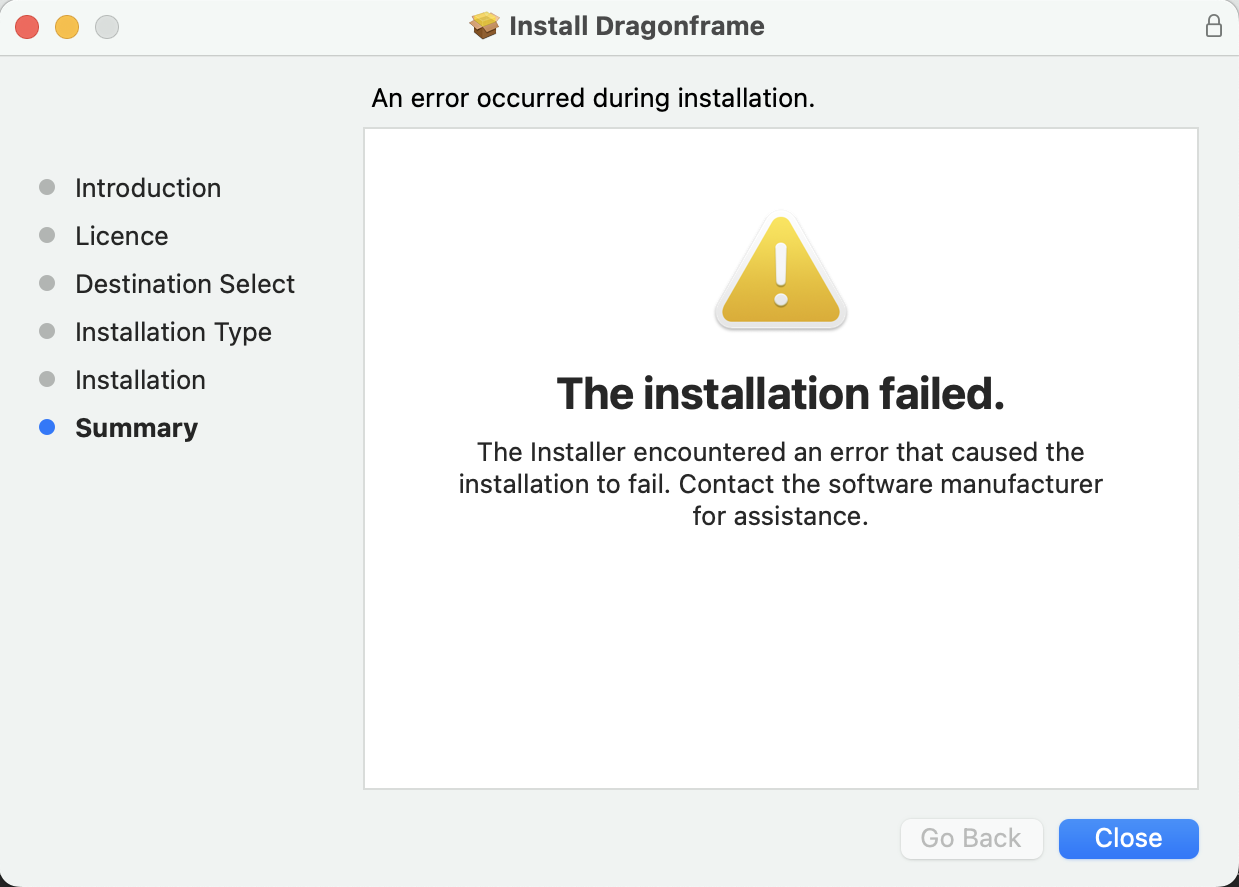
If this happens, copy or move the installer to a non-cloud location, and try again.
Motion Control
DMC-32 / DMC-16 / DMC+
The Dragonframe Master Controller is our flagship motion control coordinator. It comes in three varieties: The DMC-32, DMC-16, and the DMC+. The DMC-32 has 32 channels of step and direction that you can wire to your stepper motor drivers. The DMC-16 has 16 channels of step and direction. The DMC+ provides powered drivers for channels 1-8, and step/dir signals for channels 9-16.
Use the DMC-32 or DMC-16 with your own stepper motors drivers.
Use the DMC+ with your own stepper motors (or drivers for channels 9-16).
All of the DMC devices support real-time shooting. This means they are capable of shooting stop motion and video.
Arduino DFMoco
Arduino is an inexpensive, open-source hobby computer. We provide a special program (“Sketch” in Arduino world) called “DFMoco”. It provides 4-8 channels of step and direction output (depending on the Arduino model). We provide this sketch as a convenience, for people who are comfortable working with electronics and are interested in creating a homemade, low cost, simple motion control solution. We do not offer customizations of the DFMoco sketch (although you are free to do it yourself).
The Arduino DFMoco integration is non real-time (shoot-move-shoot only). This means that it can be used to shoot stop motion, but not video.
The DFMoco sketch is installed with Dragonframe at:
[Dragonframe Install folder]/Resources/Arc Motion Control/DFMoco
WIRING THE ARDUINO FOR MOTION CONTROL
An Arduino running the DFMoco sketch will generate step and direction signals for stepper motors.
If you already have stepper motor drivers, you can take these signals and wire them into a connector for those drivers.
If you do not have stepper motor drivers, and need to move relatively small stepper motors, you can wire the Arduino signals to a Big Easy Driver or comparable board. You will use one Big Easy Driver for each stepper motor.
The pin-out for each step and direction signal is described in the DFMoco sketch.
eMotimo
The eMotimo spectrum ST4 is a full-featured 4-axis controller with integrated pan and tilt control.
Additionally it has two powered motor output typically paired with a slider and focus motors.
It is accurate, repeatable, and supports cameras weighing up to 15lbs.
The eMotimo ST4 implements our real-time protocol. This makes it faster for programming moves, performing tests, and even capturing real-time video.
Inquire at eMotimo.
Kessler Crane
Kessler Crane is well-known motion control company that has recently integrated some of their motion control systems with Dragonframe.
The Kessler CineShooter and Second Shooter Pro implement our real-time protocol.
Slidekamera
SLIDEKAMERA produces high-quality motion control equipment for filmmakers, from lightweight DSLR’s to professional, heavy cinema cameras: sliders, remote heads with lens control, turntables and many more.
Using the new SLIDELINK PRO adapter enables real-time playback for SLIDEKAMERA hardware. This means it can be used to shoot stop motion or video.
You can use it to shoot not only stop-motion animation but also live video: advanced packshots, VFX plates, greenscreens or feature film’s shots demanding advanced camera movement.
Inquire at Slidekamera.
Performing Rigs –– Tools for Rigging Special Effects
Performing Rigs is a brand-new company, and the first with tools for rigging special effects.
“Our five Rigs create and repeat the increasingly requested complex movement of elements within the frame. We have removed the tedium and inconsistency of practicing and repeating tosses, twirls, drops and sprays. We provide tools that are ready for work, avoiding short-deadline panics and erasing development time.”
“If you are using the Dragonframe DMC-32 for work with stepper motors, then be sure to check out our Run-2 and Run-4 products! These products are rack mount or case style motor drivers and 48V power supplies for stepper motors, pre-configured for use with the DMC-32.”
Inquire at Performing Rigs.
edelkrone (no assistance available)
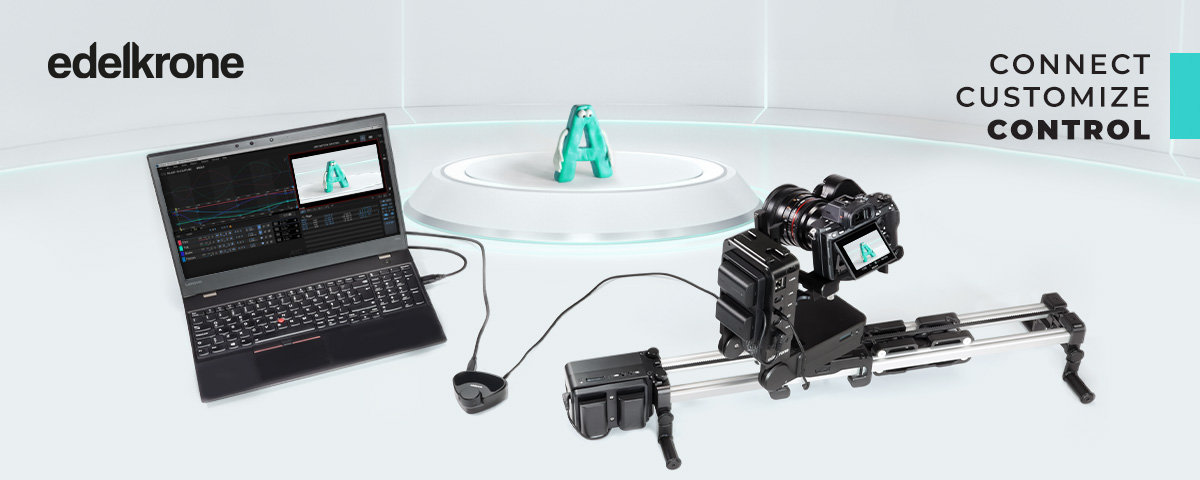
Edelkrone does not appear to be providing support for their Dragonframe integration. It may not be the best choice.
The edelkrone Link Adapter is now available for purchase, connecting edelkrone’s innovative motion control system to Dragonframe software for flawless stop motion animations. The system works with SliderPLUS and Slide Module v3* motion control setup paired with HeadPLUS v2** (required). By integrating edelkrone Link Adapter and Dragonframe into this setup, users can set camera motions by hand, create precise and repeatable camera movements, and adjust the focus of the camera using the knob located directly on the edelkrone Link Adapter.
* or previous generation Slide Module v2
** or previous generation HeadPLUS v1
Learn more by visiting the edelkrone website.
Watch edelkrone’s Link Adapter setup for Dragonframe tutorial.
The edelkrone Link Adapter is non real-time (shoot-move-shoot only) when used with Dragonframe. This means that it can be used to shoot stop motion, but not video.
Noxon
Noxon’s Mod Slider is light, rugged, and a very good value. It has an interchangeable rail system from 60cm to 200cm.
You can see it in action here: YouTube: Affordable 3 axis slider for video, timelapse and stopmotion.
Inquire at Noxon.
The Noxon Mod Slider + Dragonframe Adapter is non real-time (shoot-move-shoot only) when used with Dragonframe. This means that it can be used to shoot stop motion, but not video.
Note: You must select ‘DFMoco Arduino’ as the device type in Scene | Connections.
Dynamic Perception
Dynamic Perception produces rugged, light-weight linear sliders and pan/tilt heads.
Their NMX Digital Motion Controller (3-axis stepper controller) is now Dragonframe compatible.
The NMX Digital Motion Controller is non real-time (shoot-move-shoot only) when used with Dragonframe. This means that it can be used to shoot stop motion, but not video.
Inquire at Dynamic Perception.
SmartSystem
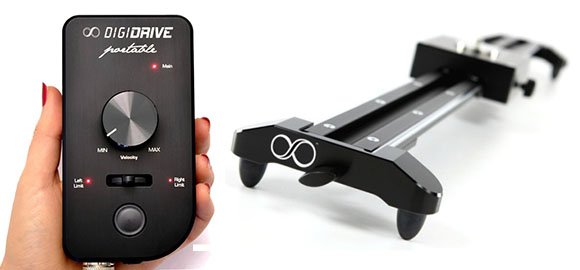
SmartSystem is an Italian-based company that creates high-precision linear sliders. Their SmartSlider Reflex S employs a unique fluid drag system to reduce vibration.
The DigiDRIVE Portable is a Dragonframe compatible controller. It can control all of the DigiDRIVE hardware.
The DigiDRIVE Portable is non real-time (shoot-move-shoot only) when used with Dragonframe. This means that it can be used to shoot stop motion, but not video.
Inquire at SmartSystem.
| Device | Real-Time | Max Axis Count | Virtuals | Aim Point | Couple Motors | Go-Motion | DMX Output | REAL-TIME FRAMES |
|---|---|---|---|---|---|---|---|---|
| DMC-32 | YES | 32 | YES | YES | YES | YES | YES | 20000 |
| zDMC-16 | YES | 16 | YES | YES | YES | YES | YES | 20000 |
| zDMC+ | YES | 16 | YES | YES | YES | YES | YES | 20000 |
| DMC-16 | YES | 16 | YES | NO | NO | YES | YES | 10000 |
| DMC+ | YES | 16 | YES | NO | NO | YES | YES | 10000 |
| eMotimo ST4 | YES | 4 | NO | NO | NO | NO | NO | 4320 |
| Kessler CineShooter | YES | 5 | NO | NO | NO | NO | NO | 10000 |
| dmc-lite (Arduino) | YES | 8 | NO | NO | YES | YES | NO | 10000 |
| DFMoco (Arduino) | NO | 4/8 | NO | NO | NO | YES | NO | N/A |
| SLIDEKAMERA Slidelink Pro | YES | 4 | NO | NO | NO | NO | NO | |
| edelkrone Link Adapter ** | NO | 4 | NO | NO | NO | NO | NO | N/A |
| Performing Rigs (via DMC-32) | YES* | 32* | NO | NO | YES* | YES* | YES* | 20000* |
| Noxon Mod Slider | NO | 4 | NO | NO | NO | NO | NO | N/A |
| DitoGear ** | DEPENDS | 8 | NO | NO | NO | DEPENDS | NO | |
| SmartSystem DigiDRIVE Portable | NO | 4 | NO | NO | NO | NO | NO | N/A |
| Dynamic Perception | NO | 3 | NO | NO | NO | NO | NO | N/A |
| RGKit Play | NO | 8 | NO | NO | NO | NO | NO | N/A |
Definitions
* Performing Rigs provides hardware and drivers that are compatible with DMC-32/DMC-16 output. You must use a DMC-32/DMC-16 to interface to their hardware.
** DitoGear and edelkrone do not offer support for their integrations. DitoGear is completely defunct.
zDMC-16 / zDMC+ : These are the DMC-16 and DMC+ that have been upgraded with the Xilinx Zynq 7Z020 FPGA+CPU. If you have the original DE0-Nano daughterboard, you can purchase an upgrade card in our store.
Real-Time: The rig can move all motors together in perfect unison along a pre-programmed path. This is required for live action shots. It is also useful for quickly testing moves.
Max Axis Count: The number of motors/axes that the controller can support. In Dragonframe, you may use multiple controllers at once, in order to increase the number of total axes.
Virtuals: A configuration where a non-cartesian rig is “virtualized” as a cartesian rig, so that it can be programmed in 3D space. This is described in detail in the User Guide.
Aim Point: Orient pan/tilt towards a point in 3D space. Requires a rig that can be configured to use virtuals. Also requires DF5 or newer.
Couple Motors: Configure two stepper motor outputs to be driven by one axis in Dragonframe. Requires DF5 or newer.
Go-Motion: Creates blur by moving the camera during an exposure. The rig will back up, start moving, and capture the image while moving through the target frame position. For still images, not live action.
DMX Output: DMX512 output to control lights.
When choosing a motion control system it is important to understand what we mean when we say a rig supports real-time shooting.
Real-Time Shooting
Real-time shooting in Dragonframe means that Dragonframe can run a move at full speed, or reduced speed, with all axes fully synchronized.
If you want to program real-time moves (for live action) in Dragonframe, you need a real-time capable rig.
A real-time rig makes shooting test moves much faster and smoother.
Currently, the only motion controllers that support real-time functionality in Dragonframe are:
- DMC-32
- DMC-16 (Discontinued)
- DMC+ (Discontinued)
- eMotimo spectrum ST4
- Slidekamera SLIDELINK PRO
Non Real-Time Shooting (Shoot-Move-Shoot)
A non real-time rig will move each axis to the next position of a move at separate speeds.
This is perfectly adequate for shooting stop-motion animation.
You cannot run a live action move with a non real-time rig.
Note: Some rigs are capable of real-time shooting when used with the third-party’s custom controllers, but their Dragonframe integration may only provide shoot-move-shoot capabilities.
Yes… and no.
It depends on your needs or expectations.
For stop motion, shoot-move-shoot, you can absolutely use multiple controllers.
The software allows you to have up to eight.
For live action, it is important to understand that each controller will be started/stopped over separate USB connections.
There is no electrical sync between them.
In practice this means that they may start 5-30ms apart from each other.
If you are trying to do repeat passes of a live action move to match up in post-production… this probably won’t be pixel perfect.
If you are not trying to do repeat passes for special effects… it will probably be totally adequate.
Most hardware vendors integrate to Dragonframe using our DFMoco protocol (the same that we offer for free as Arduino code). The is a non real-time protocol. It provides shoot-move-shoot motion control, and is sufficient for almost all stop-motion animation.
The eMotimo spectrum ST4 is the first third-party system to directly implement our real-time protocol. This makes it easier to create and test moves, as well as shoot live video.
Ditogear offers DMC-16 adapters that allow their hardware to be run in real-time from our DMC-16.
The Performing Rigs equipment is made to be run via our DMC-32 (or DMC-16).
Ditogear equipment can be run via the DMC-32/DMC-16, if you have their DMC-16 adapters. (Ditogear is no longer in business.)
Other than that, most third party systems are closed systems. They have their own control signals, drivers, etc, with cabling that is not documented.
The DMC-32/DMC-16 outputs step and direction signals. These can only go to devices that have inputs for step and direction signals. Typically, that would be a stepper motor driver.
The Volo is no longer sold.
However, General Lift in Los Angeles makes similar motion control cranes, designed specifically for stop motion with Dragonframe.
We try to maintain a list of compatible hardware in our FAQ(see previous questions). There is no standard protocol for operating with motion control hardware, so unless it’s on our list, or Dragonframe support is listed on the manufacturer’s page, it’s not going to work.
The third party manufacturer must integrate their system with Dragonframe in order for it to work.
Robotic arms work very differently from typical motion control cranes. We do not have the expertise to create any type of integration, or to offer any help if you attempt to do it. The only integration you could reasonably do is to use separate software to program moves on the arm, and just work with Dragonframe to tell the other system when to advance to the next frame.
Many devices, including our own, use a VCP (virtual COM port) chip from FTDI to communicate with a computer.The driver situation for this type of device is a little bit messy.
- For Windows, you should not need to install drivers, but you can install the VCP drivers from FTDI if you want.
- For Ubuntu, you do not need to install drivers.
- For macOS 10.9+, you should not install drivers.
Of course, if you install drivers, please restart your system before trying again.
On macOS, you may still run into issues where the device is not detected. This could be due to another driver from FTDI being present.
Look for this file:
/Library/Extensions/D2xxHelper.kext
(Please note this is from the computer root, not your user location)
If you have that file, it means another application installed it in order to prevent the VCP drivers from loading. For example, the Kessler kOS software does this.
If that is installed, you will need to do the following before running Dragonframe:
Open a Terminal (in Applications | Utilities).
Type the following command to unload the D2xxHelper:
sudo kextunload -b com.FTDI.driver.D2xxHelper
(This will ask for your password. It is your computer password. It will not show while you type.)
Then type this command:
sudo kextload -b com.apple.driver.AppleUSBFTDI
At that point, you can plug in a device, wait about thirty seconds, and it should show in the Scene | Connections screen.
The device shows up in the list, but the connection attempt fails immediately.
This is usually due to invalid permissions on the device.
For udev-based systems, you can resolve this by adding rules for the device.
Open a terminal:
cd /etc/udev/rules.d
Create a file to hold the FTDI rules:
sudo nano 40-ftdi.rules
And add the following content to it, save and exit:
#FTDI permissions granted to users group

SUBSYSTEM=="usb", ATTR{idProduct}=="6001", ATTR{idVendor}=="0403", MODE="0777", GROUP="users"

SUBSYSTEM=="usb", ATTRS{idProduct}=="6001", ATTRS{idVendor}=="0403", MODE="0777", GROUP="users"

SUBSYSTEMS=="usb-serial", MODE="0777", GROUP="users"
Reload the rules:
sudo udevadm control --reload
Then unplug the device, plug it back in, and try again.
Our DFMoco sketch for Arduino is not compatible with motor shields.
The comments at the beginning of the sketch specify which output pins it uses for step and direction. You will have to make your own connection to motor drivers.
Edelkrone has a video with setup instructions for Dragonframe. Start with that:
If you still have trouble connecting, try plugging the link adapter into the computer before turning on the head, slider, or other edelkrone components.
Please review the NMX Dragonframe Support on the Dynamic Perception site. For Dragonframe 4 or newer, add a device and choose DFMoco as the Device Type in the Connections screen.
No. The Dragonframe software must always be running on a computer in order to drive the motion control system.
The DMC-32 takes AC power and has a 12V power supply. You would have to replace that chain, which we do not recommend.
The DMC-16 takes AC power and has a 5V power supply. You would have to replace that chain, which we do not recommend.
Also, keep in mind that you must have the Dragonframe software running on a computer in order to run moves on the DMC-16 (or any motion control hardware with Dragonframe).
For Dragonframe 5 and newer, you can directly import an FBX file.
For older versions:
The Pacific Motion Control site has a great guide on exporting Maya to Kuper’s ASCII format:
Exporting_Maya_Moves_to_Kuper_ASCII_Data_Files.pdf
Once you have the camera move in that format, you can use the menu in the Arc workspace to import the raw move into Dragonframe.
Note that since Maya is 3D software, you must have Dragonframe axes set up for X/Y/Z and PAN/TILT/ROLL, or their equivalents (vTrack, vEW, VNS, for example).
Dragonframe uses the SDL2 library to support gamepads. You must install SDL2 in order to get this support.
For Ubuntu/Debian systems:
sudo apt-get install libsdl2-2.0
For Fedora systems:
sudo yum install SDL2
Then, unplug your gamepad, plug it back in, and start Dragonframe again.
The DFMoco Arduino sketch is installed with Dragonframe, in the Resources folder.
The full path is: [Dragonframe Installation Folder]/Resources/Arc Motion Control/DFMoco
The directory has a readme file with more information.
The dmc-lite Arduino sketch is installed with Dragonframe 2024 and newer, in the Resources folder.
The full path is: [Dragonframe Installation Folder]/Resources/Arc Motion Control/dmc
The directory has a readme file with more information.
In order for Dragonframe to work with a third-party motion control system, the third-party must implement one of our communication protocols.
There are two choices, “DFMoco” and “DMC”. The DFMoco protocol is fairly simple, but it does not support real-time (video) motion control. It can only be used for shoot-move-shoot style stop motion animation or time-lapse.
The DMC protocol is much more complicated, but it can be used to provide real-time motion control.
The DFMoco protocol is described in a document that is installed with the software.
The location is: [Dragonframe Installation Folder]/Resources/Arc Motion Control/DFMoco/DFMoco_Protocol.rtf
The DMC protocol is defined in this document: DMC-Protocol-2024-02-13.pdf
We also provide a message parser you can use for the DMC protocol:
dmc_msg.h
dmc_msg.c
You can also look at the ‘dmc-lite’ implementation of the DMC protocol for more insight into it.
This is installed with Dragonframe 2024 and newer, at:
[Dragonframe Installation Folder]/Resources/Arc Motion Control/dmc
DitoGear, a motion control company, no longer exists.
We do not have the expertise to repair any of their equipment, or tell you how to repurpose it for other uses.
If you have their DMC-16 adapters, those will also work with our DMC-32 and DMC+ RJ-45 outputs.
If you are brave or knowledgable, you can try to wire your DitoGear equipment up to our DMC-32 or dmc-lite.
Here is the pinout for single-axis Ditogear devices:
- CLK
- DIR
- SHUTTER
- GND
- GND
- RESERVE
- VCC
- VCC
Here is the pinout for double-axis Ditogear devices:
- PAN CLK
- PAN DIR
- TILT CLK
- GND
- GND
- TILT DIR
- VCC
- VCC
Please try to confirm this information, and be careful when trying to wire things up. We think that the VCC on these pins is not just 5V TTL, but that they are ‘injecting’ a higher voltage/current signal to actually power the motors.
We recommend getting some RJ45 breakout boards and examining the signals coming out of their controller.
Once you’ve sorted out the VCC lines, you should be able to align the DMC-32 RJ45 or dmc-lite output with the DitoGear input.
The signals they are calling “CLK” are what we call “STEP+”. Their “DIR” is our “DIR+”.
If you have a DMC-32, DMC-16, or DMC+, you can trigger real-time playback from the SWITCH INPUT:
- In the Triggers setup (Scene | Triggers…), select “Do not use” for the switch input.
- In the Arc Motion Control workspace, press the Run Live button.
- Wait for the rig to move in to position, and the Run Live button to turn solid blue.
- Short the SWITCH inputs on the DMC-32/DMC-16/DMC+.
The device should start real-time playback of the move, just as if you had pressed the Run Live button.
If you are trying to run a live motion control move and get a pre-roll failure message, it means that the rig could not back up into the required position.
If your programmed move has any velocity at the beginning, the motion control rig must back up sufficiently to be able to reach that velocity at the moment it hits frame 1.
So, if you start a move at an axis limit, and it has velocity immediately (frame 1 and frame 2 have different positions), you will get a pre-roll failure.
You can solve this by not starting moves at your limits, or having at least one frame before starting movement.
Order Management
When your order is completed, our system emails you an invoice.
If you made an account when you ordered, you can find your invoice in your orders page.
You can also request an invoice by contacting support ([email protected]) with your order number.
You can request a refund within 14 days of receipt of goods by contacting support ([email protected]).
Please note that the software has a free trial. We encourage you to use that before purchasing, to see if the software is right for you.
You will be responsible for shipping any goods back to us, as well as the original shipping costs. If you purchased a keypad at the reduced bundled rate, but choose not to return it, you will be liable for the full price of it.
You can request a refund within 14 days of receipt of goods by contacting support ([email protected]). Make sure to include your order number.
You will be responsible for shipping any goods back to us, as well as the original shipping costs. If you purchased a keypad at the reduced bundled rate, but choose not to return it, you will be liable for the full price of it.
Please contact support as soon as possible to cancel an order. We ship most orders the next business day.
You can contact support at [email protected].
Include your order number.
Purchasing / Pricing
First of all, every Dragonframe license is perpetual. You are always allowed to use the version of the software that you purchased.
- Dragonframe 3 licenses can always use any 3.x.x version of the software.
- Dragonframe 4 licenses can always use any 4.x.x version of the software.
- Dragonframe 5 licenses can always use any 5.x.x version of the software.
Starting in 2024, we changed the way we are versioning the software and issuing license keys (serial numbers).
Now, whenever you buy a license, you get three years of updates and support. This means that you will be allowed to install any of the updates we release within three years of your purchase. You are also entitled to software support during this time. This three year window of updates and support is the ‘maintenance period’.
When the maintenance period ends, you may continue to use any version of the software that was released before the maintenance period ended.
If you have a Dragonframe account, the license page will show you which version is the latest you can install.
What about people who recently purchased a Dragonframe 5 license?
If you own a Dragonframe 5 license, you will always be able to use any 5.x.x version of the software.
Additionally, all Dragonframe 5 license holders have a three year maintenance period, starting when they purchased the software.
So if you purchased the software on June 1, 2023 (as an example), your maintenance period will end on June 1, 2026. This means that you will be able to use Dragonframe 2024.01, for example.
You can see the maintenance period expiration date in your account’s License page, or through the Find Your License support email.
Why did we make this change?
Great question! We have a few reasons.
One reason is that we found ourselves holding back big features for a long time, in order to have something important for the next big release. For example, we had multi-camera support ready for a long time, but wanted it to be part of Dragonframe 5. The new version system gets rid of the pressure to make sure that each major version number has a certain amount of ‘big’ changes.
Another reason is support over the long haul. We are a small company. If we released a major version of the software every year, and had users on each version… that becomes a lot of versions that people expect support on, and patches. In the new model, we don’t really update old versions of the software, because everyone will have had three years of free updates.
Lastly, it’s actually more fair for customers. In the previous model, the amount of updates you received depended on when you bought the software. If you bought Dragonframe 4 on the day it came out, you would have received 4-5 years of free updates. If you bought it three years after it came out, you would have only received 1-2 years of updates. The new model gives everyone the same time-span for updates.
Our store currently supports the following currencies:
- USD – United States Dollar – prices exclude tax
- EUR – Euros – prices include tax
- GBP – Great British Pounds – prices include tax
- CAD – Canadian Dollars – prices exclude tax
- AUD – Australian Dollars – prices include tax
- JPY – Japanese Yen – prices include tax
- KRW – South Korean Won – prices include tax
You can find a currency switcher on our store, product, and cart pages.
Yes. Please visit our special pricing page for information on how to register for educational pricing.
To get a quote, fill out your cart as if you are shopping. On the checkout page, choose ‘Create a Quote’ as your ‘payment’ method. This will send you a valid quote instead of placing an order.
If you need special pricing, register for an account according to the instructions on that page, wait for the account to be approved, and then create the quote.
As soon as your payment clears, we send you an invoice with your serial number in it.
Note: Student orders must also wait to be approved, which can take 1-2 business days.
If you have already been using the trial, you can instantly activate the full version. (You do not need to download the program again.)
If you haven’t downloaded the trial, you will have to download and install the software.
If you purchased Dragonframe 4 on/after May 1, 2020, we have given you a free upgrade license.
Use the ‘Find Your License’ page to retrieve it.
Find Your License
If you purchased Dragonframe before then, you can purchase an upgrade to get the latest features.
Dragonframe Store.
If you purchased Dragonframe 3 on/after January 1, 2016, you have been given an upgrade license.
Use the ‘Find Your License’ page to retrieve it.
Find Your License
If you purchased Dragonframe before then, you can purchase an upgrade to get the latest features.
Dragonframe Store
Yes. We offer the full version of Dragonframe to students at a discount in our store. You must provide a valid student ID or other documentation when you place your order.
The student version is strictly for non-commercial use, meaning you cannot be paid for work you do with it, and you cannot use it to promote a product or service that makes money.
Yes. However, we want you to know a few things:
- The software is designed to be used with the keypad, and you will have the best experience with it.
- The software is always a digital download that you get immediately, even if you order the keypad.
You can purchase the software, with or without the keypad, in our store.
If you purchased it through us on Amazon, the serial number will be on a label on the CD jacket. It starts with “D5R01”. Type it in exactly as it is, in uppercase, and with the dashes. If it doesn’t work, send us your best guess and we can find it for you. If you purchased through a different vendor, you will have to contact them directly for the license. We won’t be able to find it for you.
Note: We cannot send you a serial number through email if you just purchased at Amazon. You must wait until the box arrives.
If you download the free trial, you can buy a full license at any time and fully activate the program. You do not need to download the software again.
When you buy the software from our site, we send you a serial number right away.
Your serial number is included in your invoice, in the Products Ordered table.
Note: If you buy it from another site, such as Amazon.com, you will have to wait for the box to arrive.
You convert the free trial to a full version like this:
- Start the program and select Help : Activate License… from the menu.
- Enter your purchased serial number and click Activate to activate the software.
Tips:
- Copy and paste the serial number from the e-mail we sent you. Don’t enter it manually.
- The “Registered To” field can be anything, but it must be at least three characters long.
The USB and Bluetooth keypads have a one-year warranty:
DZED One Year Warranty
The DMC+, DMC-32, DMC-16, DDMX-512, DDMX-S2 and LV Cap have a two-year warranty:
DZED Two Year Warranty
We charge taxes, including VAT, as required around the world. (The UK and EU both require tax on digital goods.)
For USD and CAD, the prices listed on our site are tax-exclusive (without tax). You will see the taxes on the checkout page, after you enter your address.
For EUR, GPB and AUD, the prices listed on the site include tax/VAT.
Tax Exemption within the US
In general, most states allow for tax exemptions for schools, resellers, and some non-profits.
If you have a tax exemption certificate, you can upload it in your account’s tax setup page. [Tax Setup]
Make sure to select the appropriate state, and to provide an expiration date in the future.
Once configured, both software and hardware should then be exempt from tax for purchases in that state.
Tax Exemption in the EU and UK
If you have a business VAT number in the EU or the UK, you can provide it in your account’s tax setup page. [Tax Setup]
Digital goods (our software) will be tax exempt if you provide a valid VAT number.
All physical goods for B2B (business to business) sales are subject to VAT at the time of arrival. They are not exempt. The VAT will be included in the purchase price during checkout.
EU Zero-Rate Tax
Although some businesses in the EU are registered for “zero-rate tax”, our store is not able to accommodate that process.
Our site sells Dragonframe stop motion software and hardware via Digital River (either Digital River GlobalTech or Digital River Ireland).
They act as a “merchant of record”.
When they bill your credit card, it will show as “DRI*Dragonframe”.
With credit card payments, our payment processor first performs an authorization. Your bank may show this as a charge.
Later, when we have fulfilled the order, they will actually charge the card.
If you have purchased hardware and software (Dragonframe + the keypad), they may separate this into two charges:
- The software cost plus any taxes on it.
- The hardware cost, plus shipping, and any taxes on it.
The initial authorization for the full amount will disappear from your statement, usually within a few days.
If you own a student license, you may not use it to work that you get paid for.
You can convert the license to a full license by paying the purchasing the commercial license upgrade:
Scripting
Dragonframe can call a local script file whenever certain events occur.
This is a very easy and straightforward integration with many possibilities. Here are some:
- Back up your high-resolution images whenever a new image is downloaded.
- Color process your RAW files whenever a new image is downloaded.
- Notify a content management system whenever a frame is captured.
- Instruct a motion control application to advance its position whenever Dragonframe moves to a new frame.
Dragonframe calls your script file for the following events:
- SHOOT : As soon as the user triggers a frame capture.
- DELETE : As soon as the user deletes an image.
- POSITION FRAME : When Dragonframe is ready to capture another frame/exposure.
- CAPTURE COMPLETE : When Dragonframe has downloaded a high-resolution image from your camera.
- FRAME COMPLETE : When Dragonframe has captured all exposures for a frame.
- TEST : When Dragonframe has downloaded a high-resolution image from your camera as a test shot.
- EDIT : When Dragonframe has performed a timeline edit (cut/copy/paste).
- CONFORM : When Dragonframe has completed conforming edits of a take.
- NEW_TAKE : When Dragonframe creates a new take.
Your script file is a bash script (“.sh”, for macOS or Linux) or a batch file (“.bat”, for Windows).
Start with our documented examples and go from there.
Resources for Scripting
The Simple Interface is a basic protocol in Dragonframe that can be used over a serial port (or virtualized serial port) or TCP.
You can send commands to Dragonframe and receive notifications from it. It may be a useful integration point for using Dragonframe with other devices or applications.
It is the same protocol used by the DFRemote Arduino sketch (not the DFMoco motion control sketch).
After creating a device that sends/receives these messages, use the program’s Scene | Connections and add a connection of type Simple Interface / Serial or Simple Interface / TCP, depending on your implementation.
Serial Port Settings
| Baud Rate | 56000 kbps |
| Data Bits | 8 |
| Stop Bits | 1 |
| Parity | None |
Messages to Control Dragonframe
| Shoot | S [frame count][\r\n] |
| Delete | D[\r\n] |
| Play/Stop | P[\r\n] |
| Go to Live | L[\r\n] |
| Mute | M[\r\n] |
| Toggle Play to black | PB[\r\n] |
| Toggle Looping | LP[\r\n] |
| Opacity Down | OD[\r\n] |
| Opacity Up | OU[\r\n] |
| Step Forward | SF[\r\n] |
| Step Backward | SB[\r\n] |
| Short Play | SP[\r\n] |
| Live Toggle (Press) | LT 1[\r\n] |
| Live Toggle (Release) | LT 0[\r\n] |
| Auto Toggle | AT[\r\n] |
| Toggle High-Res/Video-Assist | TP[\r\n] |
Messages from Dragonframe
| Shooting Frame | SH [FRAME] [EXPOSURE] [EXPOSURE NAME] [STEREO INDEX][\r\n] |
| Deleting Frame | DE[\r\n] |
| Position Frame (Move to Frame) | PF [FRAME] [EXPOSURE] [EXPOSURE NAME] [STEREO INDEX][\r\n] |
| Capture Complete | CC [FRAME] [EXPOSURE] [EXPOSURE NAME] [STEREO INDEX][\r\n] |
The JSON interface is a UDP based protocol in Dragonframe, that uses the JSON format for messages.
You can send commands to Dragonframe and receive notifications from it. It may be a useful integration point for using Dragonframe with other devices or applications.
After creating a device that sends/receives these messages, use the program’s Scene | Connections and add a connection of type JSON.
Note: The optional ‘view frame updates’ feature can be turned on with command = ‘viewFrameUpdates’. This instructs Dragonframe to send a ‘viewFrame’ message every time the user toggles to a different frame.
We provide a sample Qt application that implements this interface. You can find the sample JSON project here. You must compile it with Qt 5.3 or newer.
Messages to Control Dragonframe
| Shoot | { "command" : "shoot", "frames" : 1 } |
| Delete | { "command" : "delete" } |
| Play/Stop | { "command" : "play" } |
| Go to Live | { "command" : "live" } |
| Mute | { "command" : "mute" } |
| Toggle Play to black | { "command" : "black" } |
| Toggle Looping | { "command" : "loop" } |
| Opacity Down | { "command" : "opacityDown" } |
| Opacity Up | { "command" : "opacityUp" } |
| Step Forward | { "command" : "stepForward" } |
| Step Backward | { "command" : "stepBackward" } |
| Short Play | { "command" : "shortPlay" } |
| Live Toggle (Press) | { "command" : "liveToggle", "state" : "pressed" } |
| Live Toggle (Release) | { "command" : "liveToggle", "state" : "released" } |
| Auto Toggle | { "command" : "autoToggle" } |
| Toggle High-Res/Video-Assist | { "command" : "highResToggle" } |
| Set View Frame Updates | { "command" : "viewFrameUpdates", "active" : true|false } |
Messages from Dragonframe
| Shooting Frame | { "event" : "shoot", |
| Deleting Frame | { "event" : "delete", |
| Position Frame (Move to Frame) | { "event" : "position", |
| Capture Complete | { "event" : "captureComplete", |
| Frame Complete | { "event" : "frameComplete", |
| View Frame | { "event" : "viewFrame", |
Workflow / Export / Import
You can launch Dragonframe from the command line. This includes launching a scene or take.
Dragonframe 5
Windows
- Open a command prompt
- Navigate to Dragonframe folder (usually C:\Program Files\DZED\Dragonframe 5)
- Run Dragonframe.exe
macOS
- Open a Terminal (Applications : Utilities)
- Navigate to Dragonframe 5 folder (usually /Applications/Dragonframe 5)
- Run ./Dragonframe\ 5.app/Contents/MacOS/Dragonframe
Linux (Ubuntu/Fedora)
- Open a Console
- Run LD_LIBRARY_PATH=/opt/dragonframe5/lib:. /opt/dragonframe5/bin/Dragonframe
Command Line Arguments
After the executable name you can add one or more of the options:
- -nocrashcheck : Skips the log file check and warning at startup.
- [path to dgn folder] : Dragonframe will open the specified scene and prompt you to choose a take.
- [path to take folder] : Dragonframe will open the specified take.
Examples
Launching a specific take. Note the use of quotes around the file path. This is required if there are spaces.
Dragonframe.exe “D:/My Projects/SchoolProject/pani_003.dgn/pani_003_Take_01”
Launch a scene with take chooser, and skip the crash check.
Dragonframe.exe -nocrashcheck “D:/My Projects/SchoolProject/pani_003.dgn”
Caveats
- You can only have one running instance of Dragonframe at a time.
- File paths on Windows can use forward or backward slashes.
Dragonframe 4
Windows
- Open a command prompt
- Navigate to Dragonframe folder (usually C:\Program Files (x86)\DZED\Dragonframe 4 or C:\Program Files\DZED\Dragonframe 4)
- Run Dragonframe.exe
macOS
- Open a Terminal (Applications : Utilities)
- Navigate to Dragonframe 4 folder (usually /Applications/Dragonframe 4)
- Run ./Dragonframe\ 4.app/Contents/MacOS/Dragonframe
Linux (Ubuntu/Fedora)
- Open a Console
- Run LD_LIBRARY_PATH=/opt/dragonframe4/lib:. /opt/dragonframe4/bin/Dragonframe
Command Line Arguments
After the executable name you can add one or more of the options:
- -nocrashcheck : Skips the log file check and warning at startup.
- [path to dgn folder] : Dragonframe will open the specified scene and prompt you to choose a take.
- [path to take folder] : Dragonframe will open the specified take.
Examples
Launching a specific take. Note the use of quotes around the file path. This is required if there are spaces.
Dragonframe.exe “D:/My Projects/SchoolProject/pani_003.dgn/pani_003_Take_01”
Launch a scene with take chooser, and skip the crash check.
Dragonframe.exe -nocrashcheck “D:/My Projects/SchoolProject/pani_003.dgn”
Caveats
- You can only have one running instance of Dragonframe at a time.
- File paths on Windows can use forward or backward slashes.
Dragonframe 3
Windows
- Open a command prompt
- Navigate to Dragonframe folder (usually C:\Program Files (x86)\DZED\Dragonframe or C:\Program Files\DZED\Dragonframe)
- Run Dragonframe.exe
Mac OS X
- Open a Terminal (Applications : Utilities)
- Navigate to Dragonframe folder (usually /Applications/Dragonframe)
- Run ./Dragonframe.app/Contents/MacOS/Dragonframe
Command Line Arguments
After the executable name you can add one or more of the options:
- -nocrashcheck : (in DF 3.6.0+) Skips the log file check and warning at startup.
- [path to dgn folder] : Dragonframe will open the specified scene and prompt you to choose a take.
- [path to take folder] : Dragonframe will open the specified take.
Examples
Launching a specific take. Note the use of quotes around the file path. This is required if there are spaces.
Dragonframe.exe “D:/My Projects/SchoolProject/pani_003.dgn/pani_003_Take_01”
Launch a scene with take chooser, and skip the crash check.
Dragonframe.exe -nocrashcheck “D:/My Projects/SchoolProject/pani_003.dgn”
Caveats
- You can only have one running instance of Dragonframe at a time.
- File paths on Windows can use forward or backward slashes.
- Prior to 3.6.0, if the user closed the take chooser, a hidden Dragonframe process would remain running.
Dragonframe stores all of the scene metadata (everything besides the images) in a file called ‘take.xml’.
The format of the file is defined in ‘scene.xsd’.
The format changes with new versions of Dragonframe:
The take.xml file has a “<scen:edl>” element, with an array of “<scen:vframe>” elements.
<scen:vframe> has two attributes:
- vframe: The frame number in the timeline
- file: The file number on disk
When you delete frames from the timeline, those files get dropped from the edl.
The vframe attribute holds the frame number, along with some flags:
- 0x00FFFFFF – the frame number mask
- 0x40000000 – the hidden frame flag
- 0x1F000000 – the color tags (version 5.2 and newer)
The color tags (version 5.2 and newer) are:
- 0x01000000 – red
- 0x02000000 – green
- 0x04000000 – blue
- 0x08000000 – orange
- 0x10000000 – purple
Examples
You start a new scene and capture four frames:
  <scen:edl>
    <scen:vframe vframe="1" file="1"/>
    <scen:vframe vframe="2" file="2"/>
    <scen:vframe vframe="3" file="3"/>
    <scen:vframe vframe="4" file="4"/>
   </scen:edl>
Then you decide you want hold the second frame for two frames:
  <scen:edl>
    <scen:vframe vframe="1" file="1"/>
    <scen:vframe vframe="2" file="2"/>
    <scen:vframe vframe="3" file="2"/> <!-- same file # repeated here -->
    <scen:vframe vframe="4" file="3"/>
    <scen:vframe vframe="5" file="4"/>
   </scen:edl>
Then you cutback to frame 4 and reshoot frames 4 and 5:
  <scen:edl>
    <scen:vframe vframe="1" file="1"/>
    <scen:vframe vframe="2" file="2"/>
    <scen:vframe vframe="3" file="2"/>
    <scen:vframe vframe="4" file="5"/> <!-- new file numbers for frames 4 and 5, since we deleted and then reshot them -->
    <scen:vframe vframe="5" file="6"/>
   </scen:edl>
Then you hide frame 3:
   <scen:edl>
    <scen:vframe vframe="1" file="1"/>
    <scen:vframe vframe="2" file="2"/>
    <scen:vframe vframe="1073741827" file="2"/> <!-- 0x40000000 + 3 -->
    <scen:vframe vframe="4" file="5"/>
    <scen:vframe vframe="5" file="6"/>
   </scen:edl>
That’s it!
You can check the focus, color, and lighting of your high-resolution digital stills using the Cinematography window. This is available under the Window menu and can also be accessed using Command-E/Ctrl-E.
You can play back proxies of your high-resolution stills in the animation window. To do this, press the button that has four small diamonds in the shape of a larger diamond. This toggles between video assist images and proxies of high-resolution images.
If your mp4 has strange crossover between frames, you may have run into a bug with the Windows mp4 exporter.
This sometimes happens when the frame rate is 15fps or slower.
To resolve the issue, in the Export Movie dialog, check the box to “Convert frame rate in output”, and set the output frame rate to double the natural frame rate.
For example, if you were seeing issues at 12fps, you export with an output frame rate of 24fps (leaving the source at 12fps).
The end result is that each source frame is doubled in the export. It will look exactly the same, except it should get rid of artifacts in the output.
Dragonframe 3+
Look in File | Import | Image Sequence…
NOTE: Dragonframe is not video editing software. It is primarily for capturing stop motion animation, not stitching together frames. If you always capture frames away from Dragonframe, there are cheaper and better ways to convert them into a sequence.
Dragon Stop Motion 2
Dragon Stop Motion can import an image as a background plate for a line-up layer.
However, if you are trying to use DSM to animate a series of stills that you shot outside of DSM, this won’t work. You probably just want post production software, like After Effects or Final Cut Pro to stitch your frames together and edit them.
QuickTime Pro can take a series of sequentially named images and create a movie out of them, too.
You shoot some animation, then you export it, and see your hands in the shot. They aren’t there when you play the animation in Dragonframe. What’s going on? Dragonframe always records a video assist and a hi-res separately–even if you are shooting video. So what’s happening is that your video assist frames are fine, but then you are sticking your hand in the shot while Dragonframe is capturing the “high res” frames. You can find further explanation on page 1 of the user guide.
Dragonframe gives you three cues to know when shooting is finished:
- The “READY TO CAPTURE” sign at the top disappears while it is busy, and reappears when it is ready.
- The progress bar will appear in the middle of the screen while it is busy.
- When it is done capturing an image, it plays a small beep sound.
Now, when you export a movie or image sequence, you can choose the source. If you want to make one from your video assist frames, it will look how it did in the animation window.
You can also review your hi-res images at any point in the Cinematography workspace.
Also, in the Animation workspace, you can toggle between the video assist frames and the final capture images by pressing the button with four small diamonds in the shape of a larger diamond. This allows you to preview your high-res playback as you animate.
One reason there is a separate “high-res” capture source for video is that you can add frame averaging (video sources only), which greatly reduces video noise, and you can save your images in TIFF format instead of JPEG. Also, with very high-resolution cameras (such as 1920×1080 HD or 1600×1200 video cameras) the video assist will be stored at a lower resolution, and the high-resolution captures will be full size.
Tags: Hand in shot, Deleted images showing in Export, Export frames don’t match
Any time there is a difference between what you see in the Animation workspace vs. what you see in an export, it’s important that you understand the difference between “video assist” (which is what you see in the Animation workspace) and “high-res” images (which is what you usually are exporting). If you are not sure about the difference, read the “Big Picture” section of the User Guide.
In this specific case, the problem is almost certainly that you have “Image Stabilization” engaged on your camera lens. Ironically, the way image stabilization engages every time the camera shoots can pull the lens into different positions, causing the shakiness in the high-res captures. Then the image stabilization relaxes during live view, and the lens settles back into a consistent position.
Note that our camera setup instructions for Canon cameras tell you to turn off Image Stabilization.