


Put Dragonframe at the heart of your next stop motion film.

Animation
Bring your animation to life. Professional on-screen tools for precise movements. Step, play, capture, repeat.

Cinematography
Compose and light the perfect shot with camera controls, test shots and advanced image review tools.

Audio
Import and edit multiple audio tracks. Perform dialogue track reading for multiple characters.

DMX Lighting
Program animated lighting with simple keyframes. Automate work lights for the animator. Simple front light / back light programming.
Motion Control
Use the intuitive graphical interface to program advanced camera moves.
Create beautiful animation, one frame at a time.
ANIMATE YOUR WAY
Step directly between live view and captured frames or switch to auto-toggle. Loop playback to get the sense of movement you’re aiming for. The playback and stepping functions are fully customizable for your needs.
REFERENCE MATERIAL
Load multiple reference stills or videos and view them with your animation. Blend them with opacity, pull a chromakey (blue screen), and even assign a garbage matte to see just the part you want. Pop out reference videos into a synchronized player if you want it off to the side.
KEYPAD CONTROLS
With the Dragonframe keypad, you can stay focused on animating instead of hunting around with the mouse. And the hotkeys are fully configurable, so if you really like a feature that is not on the keypad, you can move it there.

Timeline
Frame-based editing as simple as drag and drop. Adjust timing, reshoot sequences, and even restore deleted frames.

Drawing Tools
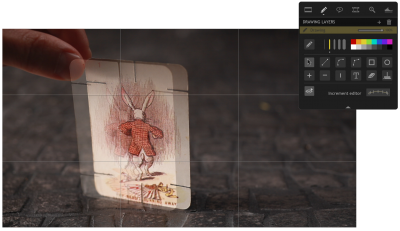
Mark the screen to guide your animation with vector-based drawing tools. Plot and preview motion paths with the increment editor.

X-Sheet
Plan your scene and track your progress in the X-Sheet side panel. Add reminders, sketch motion paths and adjusting timing.

Guide Layers
Configure all of your composition guides, drawing layers and reference material from the Guide Layers side panel.

Live View Mag
Use live view magnification to punch-in on a section of video assist image. (Canon, Nikon, Olympus and Fujifilm.)
Perfect your exposure, focus and composition.
CAMERA CONTROLS
Set camera settings such as shutter speed, ISO and white balance directly from the program. Check and adjust focus with Canon, Nikon, Olympus or Fujifilm cameras. Take test shots and get your shot right, before you start.
COMPOSITION GUIDES
Compose for multiple formats with confidence. Create custom aspect ratio masks. Combine masks with TV-safe guides. Add grid overlays for help with composition. Add a push-in mask to allow post-production push-in or panning.
IMAGE REVIEW
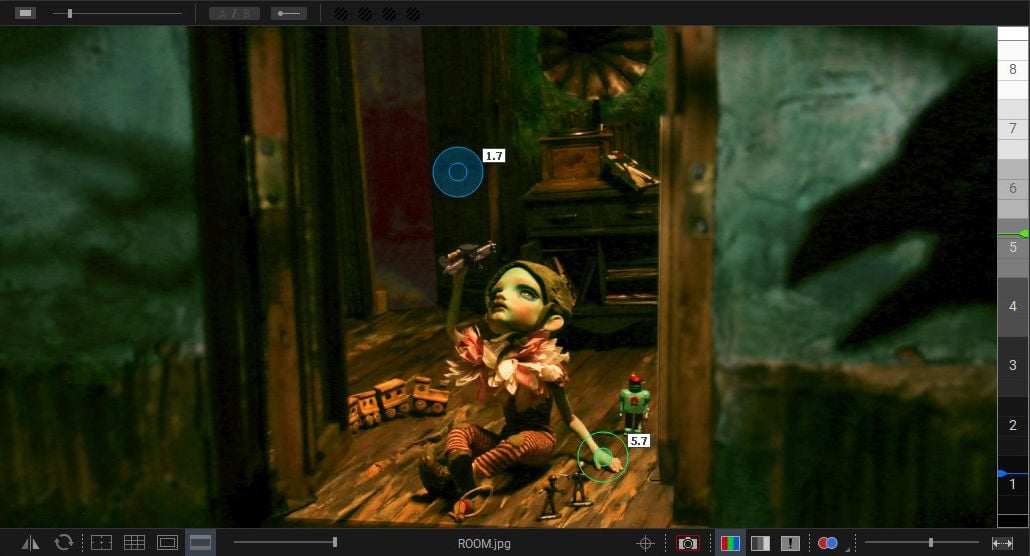
Check images at full-resolution. Check for over or underexposed areas with the clipping view. Load images from other scenes to compare exposure and composition. Compare image contrast with the Digital Densitometer.

MULTIPLE EXPOSURES
Set up multiple exposures (sub-frames) with different camera settings. Link exposures to keep their settings the same.

Color Detection
Use the color detection tool to compare tone ranges between shots, or to judge matte lighting for greenscreen effects.

Color Palettes
Create color swatches by sampling colors from your high-resolution images. Save as Adobe Swatch Exchange to share with other programs.

Movie Recording
Trigger movie recording on some supported cameras. Download videos and review them within the Test Shots tray.

Stereoscopic 3D Tools
View anaglyphs, set convergence or edge float, and adjust interocular distances.
Add audio and perform character track readings.
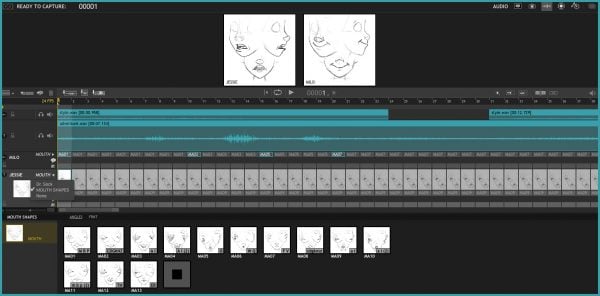
MULTI-TRACK EDITING
Import multiple audio tracks and make basic edits. Split tracks and drag segments to adjust timing on the fly. You can even move waveforms and character track readings together, to keep them in sync.
DIALOGUE TRACK READING
Create characters, scrub through your audio, and assign words and phonetics for all your dialogue. View this data while animating, in the X-Sheet, Timeline, or Audio HUD.

Waveform Views
View the mixed audio waveform in the Timeline or X-Sheet, so you can see what’s coming next while you are animating.

Reference Track Audio
Use the audio from a reference movie within the audio workspace. View the video as you scrub through the audio and perform track readings.

Time-Warp
Audio stays locked to your animation at the project frame rate. If you review your animation at a different speed, the audio adjusts to stay synced.

Custom Face Sets
Create your own face set as a multi-layered Photoshop file. Add groups for mouth, eyes, ears, or whatever parts you need.

Audio HUD
View character dialogue or face sets while animating, in a configurable heads-up display.
Take your lighting to the next level with Dragonframe’s exposure-based DMX lighting board.
LIGHTING, AUTOMATED
Control up to 512 lighting channels in conjunction with our DDMX-512, DMC-32, DMC-16 or DMC+. You define your lighting program before you shoot, and then watch as Dragonframe controls your lights during the shot, leaving your animators to focus on animating.
KEYFRAME SMOOTHING
Define your lighting program with keyframes. Adjust the smoothness in each direction with a simplified “bezier” handle—giving you a large degree of control while maintaining an efficient programming interface.
CUSTOM EXPOSURE LIGHTING
It’s easy to create custom lighting programs for different exposures. You can customize the exposure’s lighting program directly, or create a new program for one or more exposures to share.
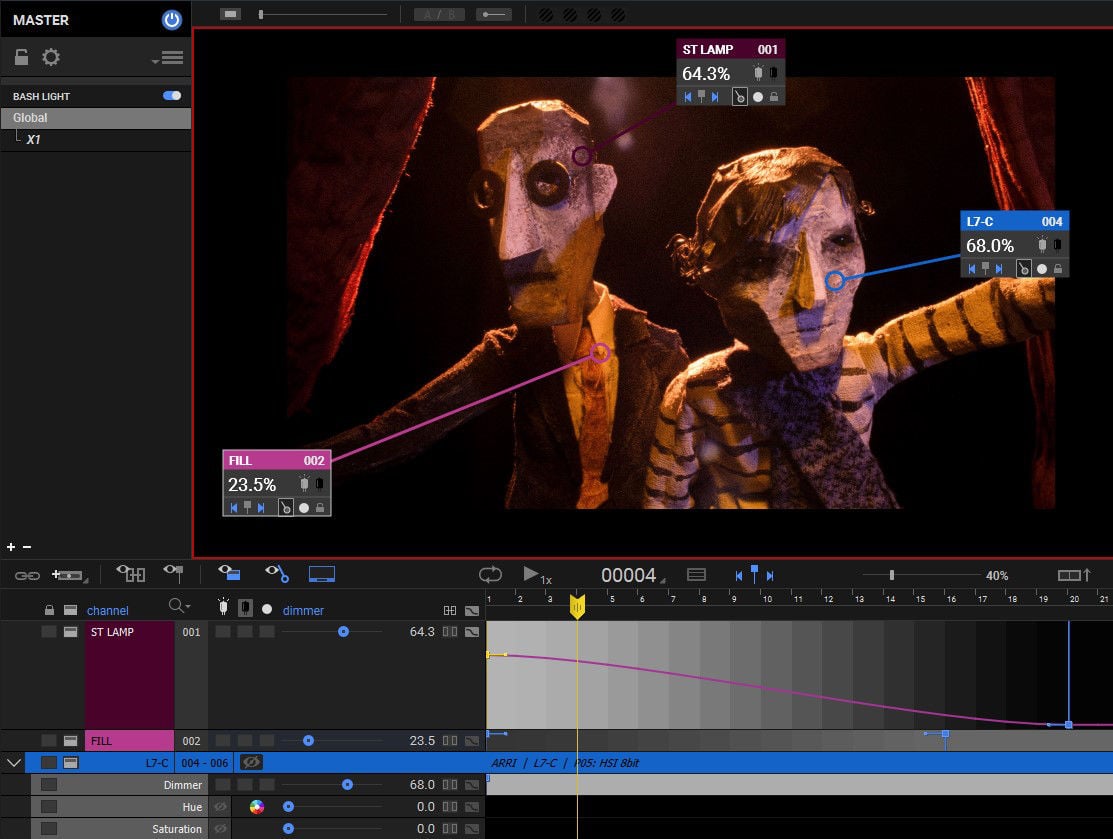

512 LIGHTS
Program up to 512 lights with the new DDMX-512 (or upgraded DDMX-S2)

Light Profiles
Create custom light profiles to match DMX values to light output.

Bash Light
Program a work light to use while animating.
Program complex camera moves in an intuitive interface.
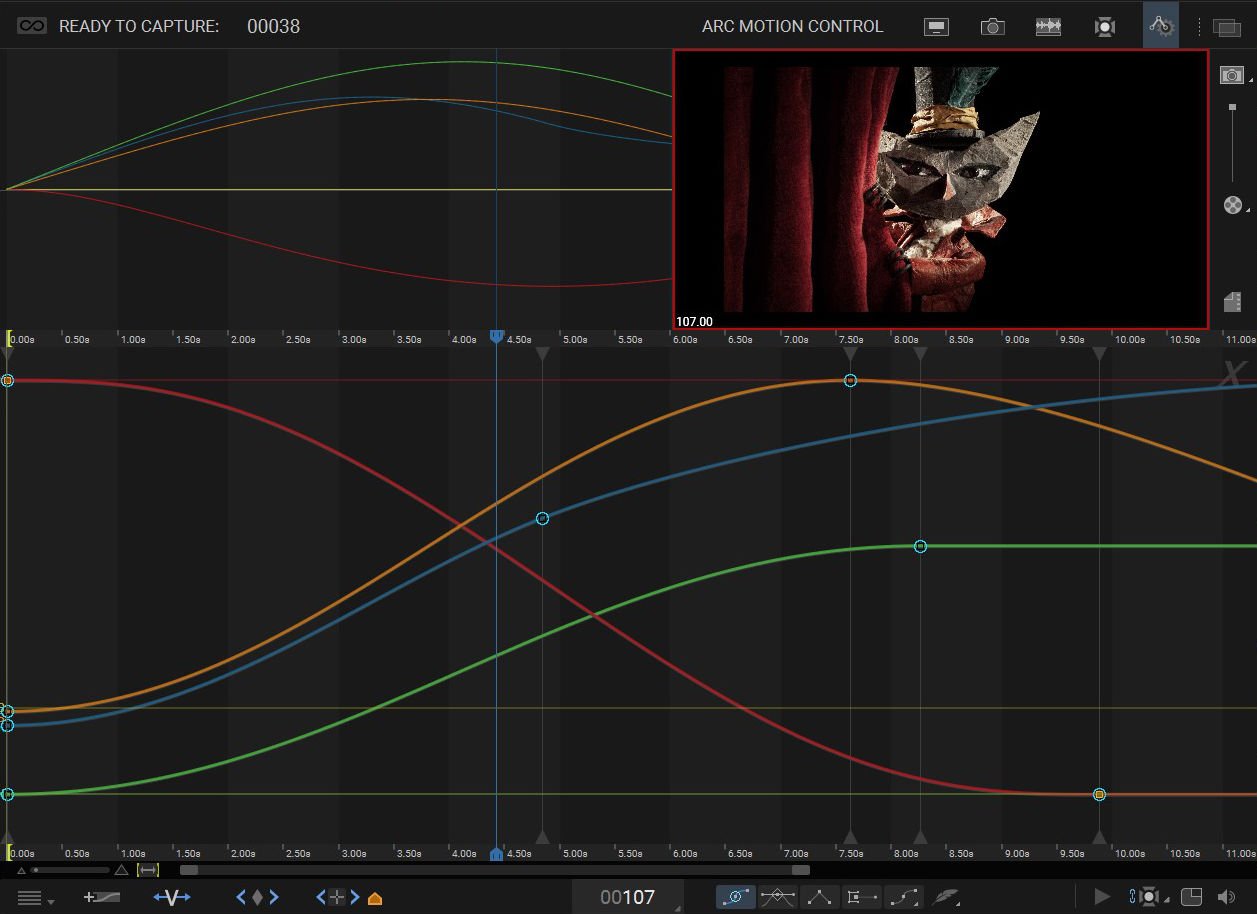
MOTION CONTROL, INTEGRATED
Integrated motion control means that you can program camera moves and lighting effects from within the same system. It means that you can quickly preview moves using the same camera you will be animating with. It means that the lighting and motion control will be in the right place, at the right time. So if the animator needs to reshoot a few frames, Dragonframe can safely move the rig back into the proper position, every time.
MOVE TESTS
Once you’ve programmed a move, you’ll want to test it out. Run a move test within the Arc workspace and see how it looks. The move test captures video assist frames only, in order to speed up the test process. On a long move, you can reshoot just the section you’re working on. You’ll have the move perfected in record time.
HARDWARE INTEGRATION
You can use a wide range of hardware, from the do-it-yourself Arduino-based DFMoco sketch to off-the-shelf kits from the eMotimo or Slidekamera. See compatible hardware in our FAQ for more information.

JOGPAD
Enter the jogpad mode to get large text and a simple keypad interface so that you can step away from the computer and get near your rig and set.

Virtuals
When used with the DMC-32, DMC-16 or DMC+ and a motion control crane, Dragonframe can provide virtual cartesian axes.

3D Data
Transfer camera moves between Dragonframe and Maya, Kuper, or other 3D software.

Feathering
Add extra smoothing of acceleration or deceleration with the new “feathering” tool.

MARKERS
Create motion paths by marking positions you want to hit, then adjusting keyframes to move through them.
Dragonframe hardware opens up amazing possibilities.
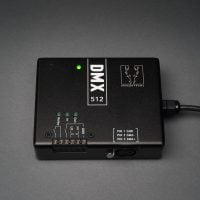
DDMX-512
Control up to 512 DMX light channels with the sturdy DDMX-512. This is the updated model of our very popular DDMX-S2.
Learn More
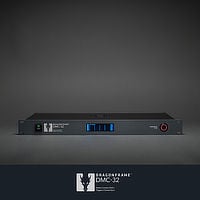
DMC-32
Provides 32 channels of fully synchronized step and direction signals at speeds up to 200kHz, a camera trigger, DMX512 lighting control, limit switch inputs, and a set of triggers for interfacing with an external device.
Learn More
Cinematography and Composition
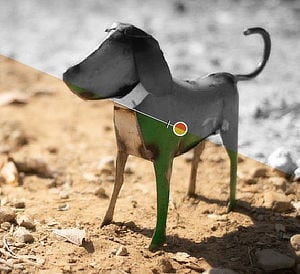
Multiple exposures (sub-frames)
Shoot multiple passes for each frame for effects like front light/backlight or stereo pairs.
Graphical camera control
Adjust your still camera’s shutter speed, aperture, ISO with visual sliders.
Depth of field slider
Adjust shutter speed and aperture together to affect depth of field without adjusting exposure.
Exposure preview offset
Adjust live view exposure simulation to match final shot (Canon EOS only).
Save camera settings in scene
Dragonframe saves your camera’s settings and restores them when you re-open the scene.
Exposure lock
Lock camera settings for each exposure.
Integrated test shot system
Save test shots separately and view them during any take of a scene.
Compare images from other scenes
Import any images and view them at full resolution.
Clipping view
Quickly see if you are clipping in the highlights or bottoming in the blacks.
Digital densitometer
Compare and match areas of exposure regardless of monitor inconsistencies.
Adjustable background gray value
Adjust the area around images in Cine widow to give your eyes a rest—or to suit the imagery.
Aspect ratio mask
Add a standard or custom aspect ratio mask and adjust opacity.
Separate mask and TV-safe overlay
Frame for both 16:9 and 4:3 in one view.
Push-in mask
Add an adjustable push-in mask for checking TV-safe and framing for pre-planned push-ins.
Grid layers
Add up to two custom grids to help with horizon line-up and composition.
Advanced composition guides
Emulate ground glass with composition guides in the guide layers.
Image Capture
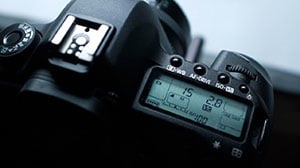
Camera support
Full integration with the most cameras: Canon, Nikon, Sony, Olympus, HDV, HDMI and more.
Folder watching
Use Dragonframe with many unsupported DSLRs.
Capture black-out
Darken your monitor while capturing to keep its glow from interfering with your lighting.
Auto-detect cameras
Automatically connect to cameras.
Automatic live view rest
Pause live view after configurable period of inactivity to avoid overheating.
Video frame averaging
Average 2-60 frames to reduce video noise (video only).
External shutter control option
Capture live view and then wait for external shutter release (for timing motion control shots).
Animation Tools
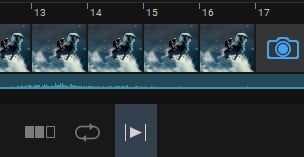
Step to live
Step directly from captured frames to your live view.
Onionskin
Blend the live view over any frame in your animation.
Auto toggle
Toggle between live view and captured frames with adjustable speed.
Toggle
One keypress toggles between live and captured frames, then back again when released.
Nav-Line
Quickly navigate your animation sequence, as well as select frames for playback.
High-res playback
Play back either your video assist frames or proxies of your full-resolution captures.
Short play
Play back the last twelve frames (configurable).
Drawing tools
Draw paths and lines on screen to assist with animation.
Difference mode
Useful for re-lining up a shot if camera or set is bumped.
Lights prominent / darks prominent
Useful when character is dark and background is light, or visa versa.
Rotoscope layers
Import images, movie files, or Dragonframe scenes as a line-up layer for easy double-pass line-ups, chromakey, or onion-skin.
Chromakey / greenscreen
Use basic chroma key (green screen) pull for line up of effects shots.
Layer position/size/orientation
Adjust rotoscope layer orientation, scale and position.
Play/loop markers
Mark in and out points for playback and looping using the Nav-Line.
User-assigned hot keys
Simple interface for re-mapping the default keyboard commands.
Punch-In for Animation
Use Canon, Nikon, Olympus or Fujifilm live view magnification to punch in on a section of the video assist image.
Auxiliary monitor
Send main view to second monitor (video village).
Project Management
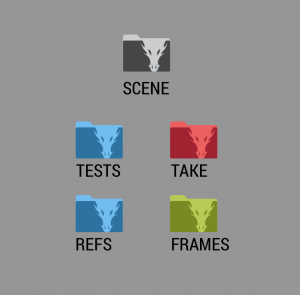
Production/scene/take naming
Name your project based on the classic clapboard naming convention.
Manage multiple takes for a scene
Create multiple takes within the same scene project. This carries over all of your camera settings, exposures, camera moves, notes, etc.
Customizable, printable X-Sheet (dope sheet)
Manage the project from a dynamic exposure sheet that updates automatically as you add exposures, audio phonemes, camera moves, and change scene length.
Pop-up notes
Enter notes that pop up when it’s time to capture a frame.
Copy and rename scenes and takes
Duplicate a scene or take from within Dragonframe.
Stereoscopic 3D Tools
Integrated 3D shooting
Automate 3D shooting with a stereoscopic slider.
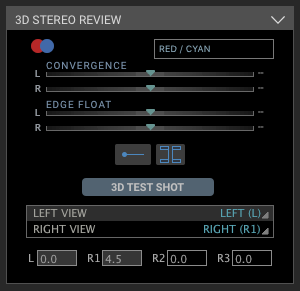
3D stereo review
View anaglyphs, set convergence or edge float, and adjust interocular distances.
3D test shots
Take 3D test shots and use the 3D review tools to evaluate them.
3D playback
Play 3D sequences using anaglyphs or transparencies in color or black and white.
Export stereo (3D) Movie
Export 3D sequences to various movie formats.
Time-lapse
Interval
Set an interval in hours, minutes, seconds.
Start time
Start time-lapse at a future date or time.
End time
End time-lapse at a future date or time.
Total frames
End time-lapse after specified number of frames are captured.
High precision
Capture within 0.1 second of the specified interval with most cameras.
Export
Direct access to source RAW/JPG/TIFF files
Your camera’s high-res source files are saved in an easily-accessible directory.
Export Movie
Create a QuickTime, AVI or MP4 movie with many export options.
Composite Export
Export a rough composite to communicate with post-production.
Export Image Sequence
Export your frames in different image formats, customize naming, etc.
After Effects
Import image sequence directly from scene source location.